
Disclosure: WebFin is reader-supported. If you buy hosting through links on this page, we may earn a commission at no extra cost to you. Commissions vary between providers and our ratings do not — here’s our full disclosure.
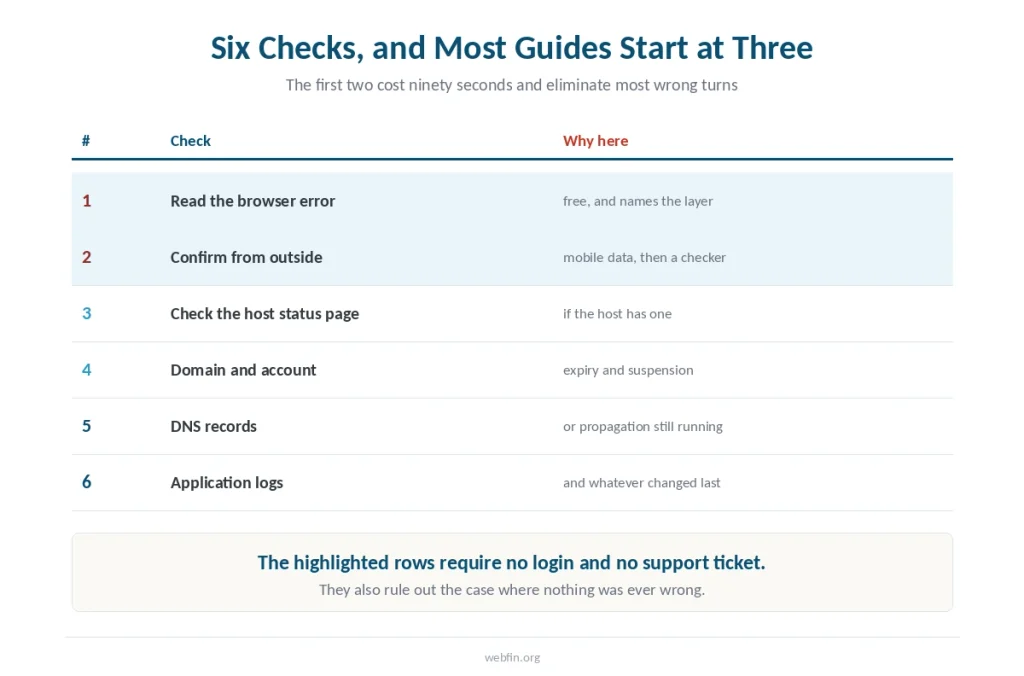
In practice, every guide to a broken website starts by telling you to check your host’s status page. That is step three, not step one, and at some hosts it does not exist.
Start with the sentence already on your screen. The browser error names the layer that failed, and the layer decides everything you do next. If the site is slow rather than down, see checking whether your host is throttling you.
The Short Answer
Read the error text, then confirm the outage from outside your own network. Those two steps take ninety seconds and eliminate most wrong turns.
Then work the layers in order: domain, DNS, server, application. Restarting things before you know which layer failed is how a partial outage becomes a longer one.
Step 1: What the Browser Just Told You
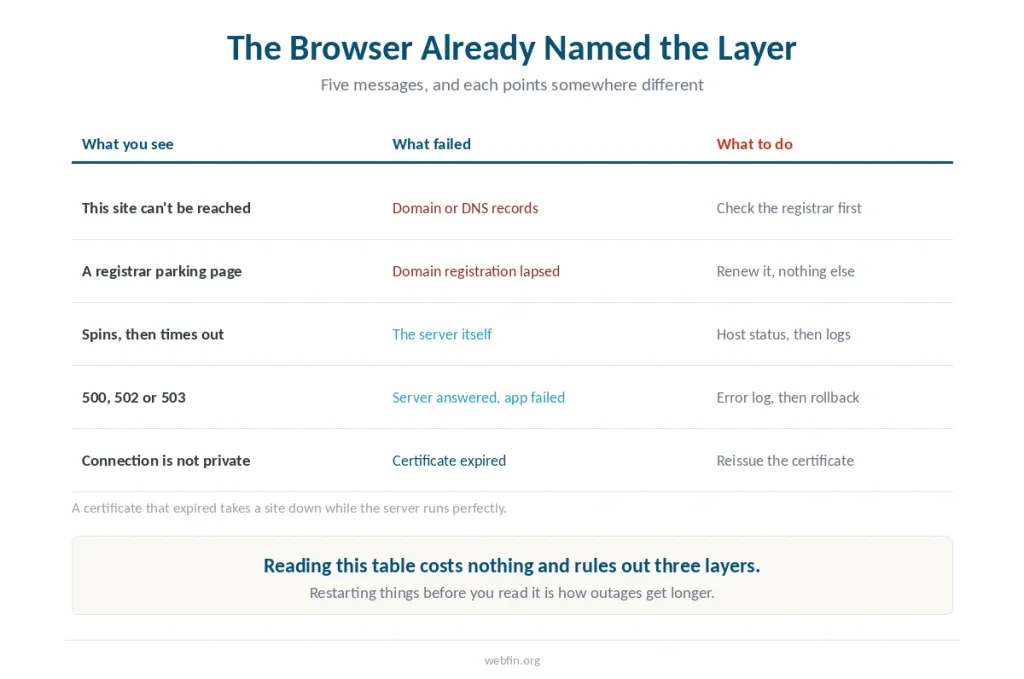
In short, five messages cover almost every case, and each points at a different layer.
A DNS error or “this site can’t be reached” means the domain or its records. Seeing a registrar parking page means the domain registration has lapsed. Spinning and then timing out means the server. A 500, 502 or 503 means the server answered and the application failed. If the outage followed a host change, see pointing a domain to a new host.
One more: “your connection is not private” means the certificate expired. That takes a site down in practice even though the server is running perfectly — certificates renew every 90 days and renewal does fail.
Write down which of those you have before doing anything else.
Step 2: Confirm It Is Actually Down
Of course, a surprising share of outages are local. A stale browser cache, a router that needs restarting, or an office firewall can produce an identical experience.
First, load the site on mobile data with wifi off. If it works, the site is up and the problem is in front of you. Hard-refresh with Ctrl+F5, or Cmd+Shift+R on a Mac.
Use a multi-location checker to test from servers elsewhere. If every location fails, the outage is real and you can stop testing your own machine.
Step 3: Check the Host’s Status Page, If There Is One
This is the step most guides put first, and it works at most hosts.
⚠️ At one host in our reviews it does not. The company emails customers about planned maintenance, which is good practice, but during an unplanned outage there is no page to check — we noted it in the review.
That absence costs you time exactly when time matters. If your host has no status page, the substitute is its support channel and a multi-location checker, neither of which tells you whether other customers are affected.
One published figure puts 18 percent of unplanned downtime at the provider’s own network, mistaken by customers for their configuration. That is a large share to diagnose blind.
Step 4: Rule Out the Boring Causes
Besides, two things take a site offline instantly and neither appears in error logs.
An expired domain registration. It is billed separately from hosting, often to a different card, and a lapsed registration removes the site from the internet within hours. Check the registrar, not the host.
⚠️ An account suspension. Unpaid invoices, a resource-limit breach or a terms violation all produce the same result. If the account is suspended, your host’s backup is inside the thing you cannot reach — the limits that trigger this are here.
Both are quick to check and both are common enough to check first.
Step 5: If It Is DNS
DNS errors resolve one of two ways: the records are wrong, or they are right and still spreading.
In practice, most DNS changes complete within one to four hours. The standard worldwide window is 24 to 48. During propagation the site loads for some visitors and fails for others, which is normal rather than broken.
Try a different resolver to bypass a cached record: 1.1.1.1 or 8.8.8.8 will do. If the site loads through one of those, your local cache was the problem and everyone else is fine.
⚠️ Do not make further DNS changes while propagation is running. Each change restarts the clock and makes the diagnosis harder.
Step 6: If It Is the Application
A 500 error means the server is running and something inside the site is not.
The cause is in the error log, which every host exposes somewhere in the control panel. Look for the most recent entries rather than scrolling from the top.
Then ask what changed. Most application failures follow a plugin update, a theme change or a deployment within the previous hour. If something changed and the site broke, roll that change back before investigating anything else.
Do not start editing configuration files before reading the log. That turns one problem into two.
What Your Host Actually Owes You
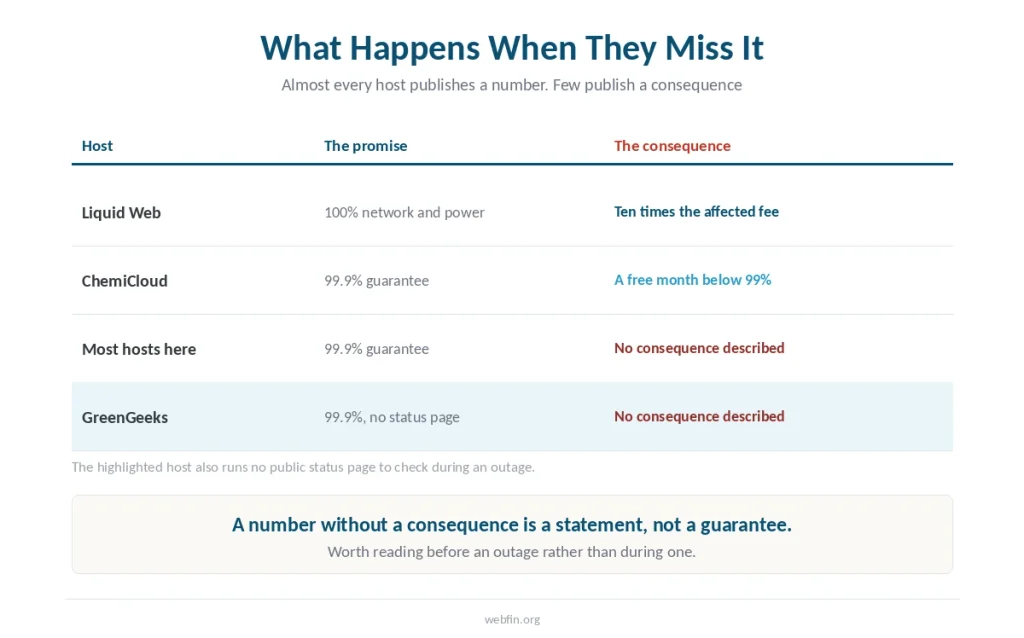
Most hosts commit to 99.9 percent uptime, which permits 8.76 hours of downtime a year. Very few describe what happens when they miss it.
Two exceptions in our reviews are worth naming. One promises 100 percent network and power uptime with service credits at ten times the affected fee, plus a support response within 59 seconds. Another publishes a credit schedule that pays a month of free hosting for every percentage point below 99.
⚠️ Everywhere else the guarantee is a number without a consequence. That is worth knowing before an outage rather than during one.
Preventing the Next One
Finally, uptime monitoring at one to five minute intervals means you learn about outages before customers do. To judge a host’s record rather than one outage, see how to read an uptime report.
Off-site backups mean a worst case is a day of lost data rather than a lost site. Test one restore a quarter, because an untested backup is a hypothesis — we set out the rule separately.
Update on staging rather than in production, and keep a note of what changed and when. Half the incidents in this article are diagnosed by that note alone.
How We Research
Diagnostic sequence and propagation timings come from published 2026 guidance, with figures attributed to the sources that state them. The hosting details come from our own reviews, where each is attributed to the host that published it. We run no tests of our own.
Our criteria are on our About page.
Frequently Asked Questions
Load it on mobile data with wifi off, then use a multi-location checker that tests from servers elsewhere. If every location fails, the outage is real. If the checker loads the site and you cannot, the problem is local.
The server is running and something inside the site failed. The cause is in the error log, and the usual triggers are a plugin update, a theme change or a deployment in the previous hour. Roll back recent changes before investigating further.
Usually DNS propagation. Changes complete within one to four hours in most cases, with a standard worldwide window of 24 to 48 hours. During that period inconsistent loading is normal rather than a fault.
Short outages generally do not. Sites down for more than 24 hours risk temporary ranking drops even after recovery, which is why monitoring that alerts you in minutes matters more than the outage itself.
One host in our reviews has none, so an unplanned outage leaves nothing to check. The substitutes are the support channel and a multi-location checker, neither of which tells you whether other customers are affected.
The Verdict
Read before you restart. The browser names the layer, and the layer decides the fix. Ninety seconds of reading saves an afternoon of guessing.
Then check the boring causes first, because an expired domain and a suspended account produce the same symptom as a server failure and take a minute each to rule out. If the cause turns out to be malware, see recovering a hacked website.