
Disclosure: WebFin is reader-supported. If you buy hosting through links on this page, we may earn a commission at no extra cost to you. Commissions vary between providers and our ratings do not — here’s our full disclosure.
Most guides to backing up WordPress start with which plugin to install. Start instead with your hosting terms, and look for one word.
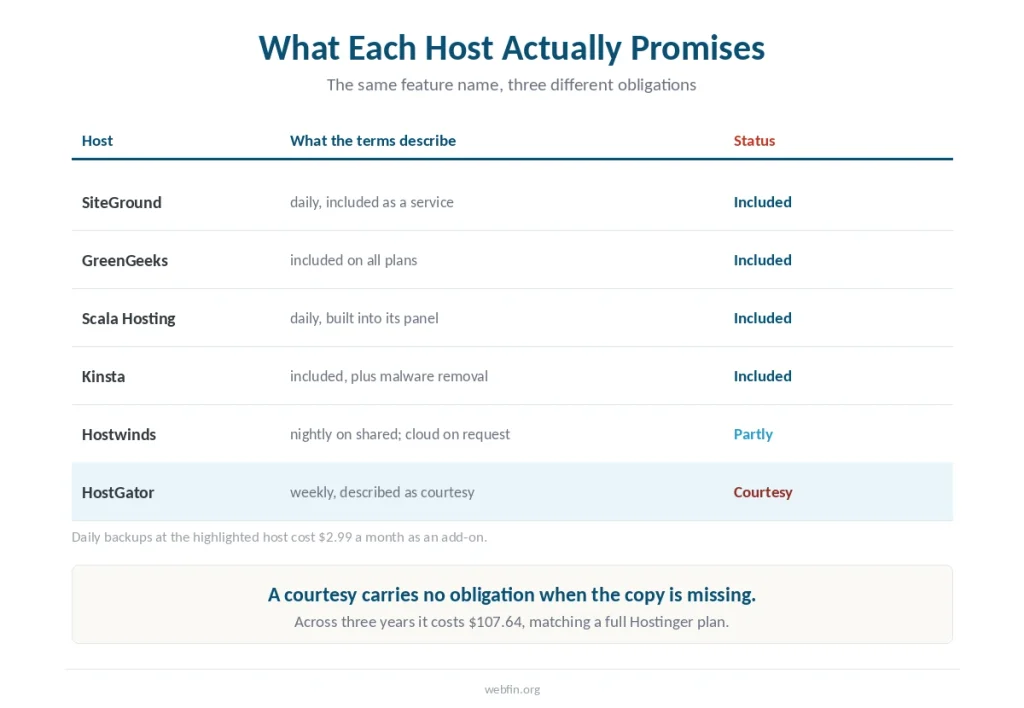
At least one host in our reviews describes its weekly backups as courtesy copies rather than a guaranteed service. That wording means the company owes you nothing if the copy is missing when you need it.
The Short Answer
Assume the host copy is a convenience and not a backup. It lives on the same account you might lose access to, and its terms may say so explicitly.
Then follow the rule that has been standard for years: three copies, two storage types, one off-site. Add a fourth step almost nobody does, which is restoring one of them on purpose before you have to. An image archive needs its own arithmetic, in hosting for photographers.
Step 1: Read What Your Host Actually Promises
In practice, backups appear on almost every hosting feature list. What they mean varies more than the feature list suggests.
Across our reviews, several hosts include daily backups as a stated service. One describes weekly copies as a courtesy and sells daily backups separately from $2.99 a month — we set out its full catalog there. Another includes nightly backups on shared plans and prices cloud backups on request.
⚠️ Across three years, that $2.99 add-on comes to $107.64. Four of the fifteen plans we have priced cost less than that across the same period, and one costs exactly the same.
Search your host’s terms for the word courtesy. If it appears near backups, treat their copy as a bonus rather than a plan.
Step 2: Understand Why Host Backups Are Not Enough
Even a guaranteed host backup has a structural problem, and it is not about quality.
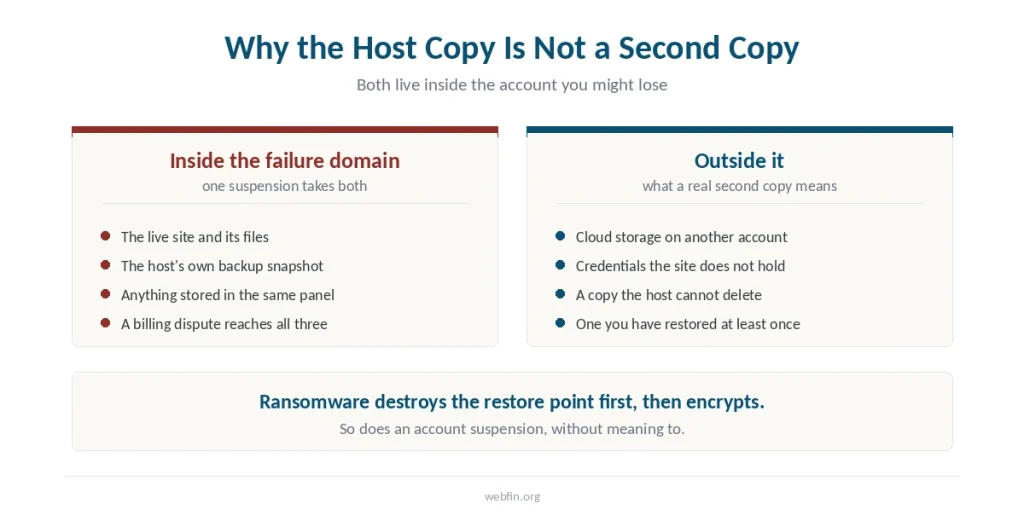
Of course, the copy lives inside the same account as the site. If that account is suspended for a billing dispute, a terms violation or a resource limit, the backup is inside the thing you have lost access to — the limits that trigger suspensions are here.
Ransomware playbooks make the same point from the other direction: destroying the restore point is step one and encrypting production is step two. A backup in the same failure domain as the site is not a second copy.
That does not make host backups useless. It makes them one layer of several.
Step 3: Apply the 3-2-1 Rule
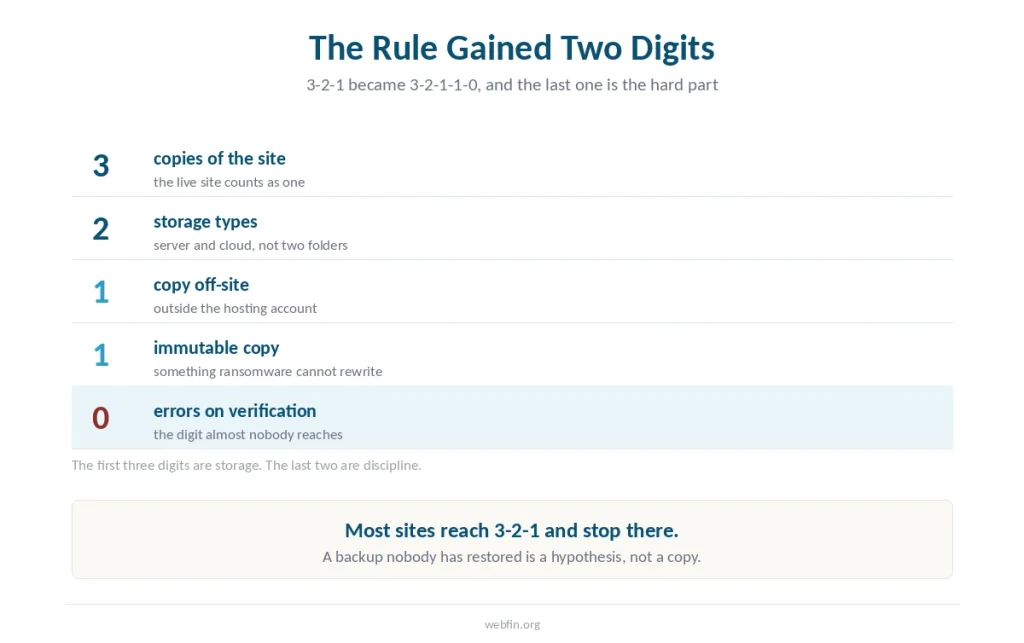
Three copies of your data, on two different storage types, with at least one held off-site. The United States cybersecurity agency endorses it and it has been the baseline for years.
In practice, for a WordPress site that means the live site, a plugin sending copies to cloud storage, and whatever snapshot your host takes.
A newer version adds two digits: 3-2-1-1-0. The extra one means an immutable or offline copy, and the zero means zero errors on verification. That last digit is the one this article is really about.
Step 4: Back Up All Four Parts
A WordPress site is four things, and incomplete archives are one of the two leading causes of failed restores.
The database holds every post, page, product, order, user account and setting. Without it you have a theme and no content.
The uploads folder holds media. The themes and plugins folders hold everything you have customized. Core files can be redownloaded from WordPress.org, though including them makes restoration simpler. An image archive needs plans chosen on storage, which the best hosting for portfolio sites covers.
Missing media folders and incomplete database exports account for a large share of restore failures, alongside version mismatches between the archive and the server it lands on. For a site whose uploads folder is the product, see hosting for photographers.
Step 5: Match Frequency to Change
In short, daily for stores and busy publications, weekly for a brochure site that changes rarely.
⚠️ Always take a fresh backup immediately before updating core, plugins or a theme. That is the moment most sites break, and a copy from three days ago costs you three days.
A practical retention pattern keeps daily copies for a fortnight, weekly copies for a couple of months and monthly copies for a year. Longer retention costs storage without adding much protection.
Step 6: Restore One Before You Need To
This is the step almost nobody performs, and it is the one that decides whether the previous five mattered.
Restore a backup into a staging environment and check three things: does the content match, do the plugins load, does the site perform normally. Several hosts in our reviews include staging at no extra charge. Test risky changes on a copy first, as our guide to setting up a staging site explains.
⚠️ One published account puts version mismatches and incomplete archives behind roughly six in ten failed restores, and reports that a structured post-restore check raises success rates substantially. Both figures come from a single source and we report them as its findings. If the worst happens, recovering a hacked website sets out the order that works.
Run the drill once a quarter. The first time will find something.
Why This Matters More Than It Used To
Of the 11,334 WordPress vulnerabilities disclosed in 2025, 91 percent were found in plugins rather than in core.
That is not an argument against plugins, which are what makes WordPress useful. It is an argument for assuming that something will eventually go wrong through one of them, and for having a copy you have already proven you can restore.
How We Research
Backup practice and the 3-2-1 rule come from published 2026 guidance, with figures attributed to the sources that state them. The hosting details come from our own reviews, where each is attributed to the host that published it. Where a statistic comes from a single source we say so.
We run no tests of our own. Our criteria are on our About page.
Frequently Asked Questions
Usually not. They sit on the same account as the site, so an account suspension takes both. Some hosts also describe them as courtesy copies rather than a guaranteed service, which means no obligation if one is missing.
Three copies of your data, on two different storage types, with at least one copy off-site. A newer version extends it to 3-2-1-1-0, adding one immutable copy and zero errors on verification.
Daily for stores and busy publications, weekly for sites that rarely change. Always take a fresh copy immediately before updating core, plugins or a theme, because that is when most sites break.
Four: the database, the uploads folder, themes and plugins. Core files can be redownloaded from WordPress.org, though including them simplifies restoration. A backup without the database contains no content.
Restore one into a staging environment and check content, plugins and performance. Incomplete archives and version mismatches account for a large share of failed restores, and neither shows up until you try.
The Verdict
Read the wording before you trust the copy. One word in a hosting agreement decides whether a missing backup is a broken promise or an unmet expectation. Our page on shared against managed WordPress covers what the premium actually buys.
Then take the second copy yourself, off the account, and restore it once on purpose. A backup nobody has restored is a hypothesis. Automating all of this is covered in setting up automatic backups.