
Disclosure: WebFin is reader-supported. If you buy hosting through links on this page, we may earn a commission at no extra cost to you. Commissions vary between providers and our ratings do not — here’s our full disclosure.
To set up automatic backups, pick where the automation runs, give the database and the files separate schedules, send the copies somewhere your hosting account cannot reach, and turn on an alert for failures. The setup takes half an hour. Keeping it working is the real job, because automated backups fail quietly: a timeout on a large site, an expired key at the storage provider, a scheduler that never fires. Our guide to backing up a WordPress site covers what to copy and why; this page covers making it happen without you.
How to Set Up Automatic Backups: The Short Answer
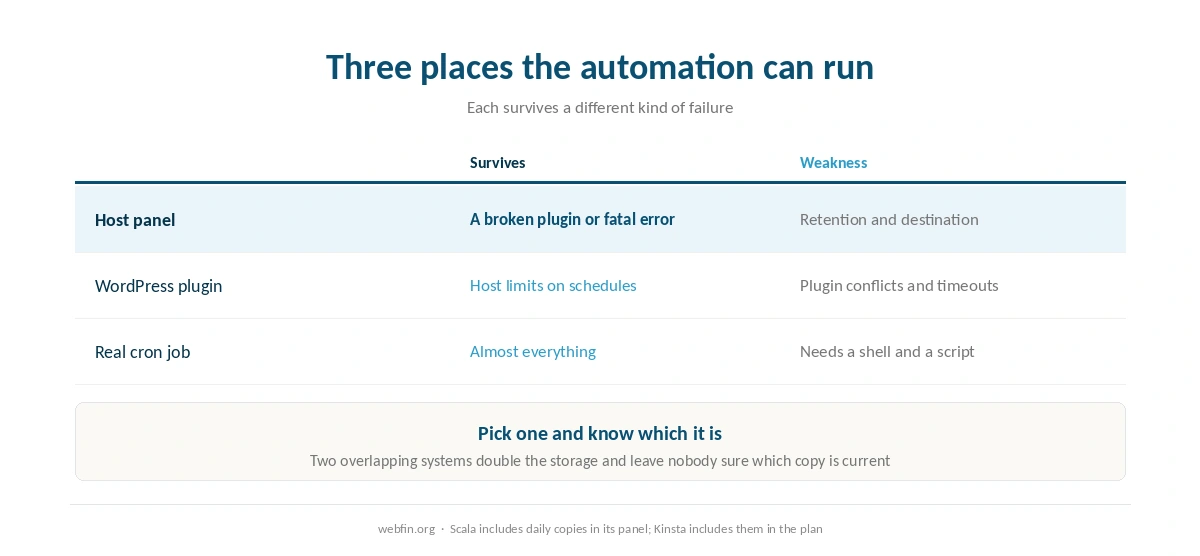
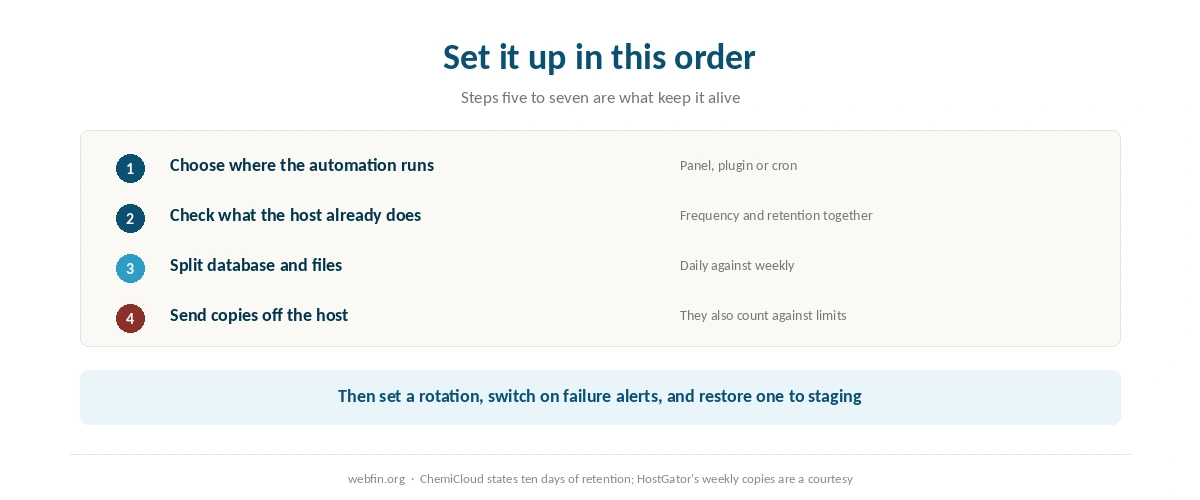
Choose one place for the automation: your host’s panel, a plugin, or a real cron job. Back up the database daily or more often and the files weekly. Send both to storage outside the hosting account. Keep a rotation of daily, weekly and monthly copies, switch on failure emails, and restore one copy every few months to prove the chain works.
Step 1: Choose Where the Automation Lives
The host’s panel. Backups run outside WordPress, so a broken plugin cannot stop them, and the panel handles the restore for you. Scala Hosting includes daily copies in its own panel, and Kinsta includes them in its plan. The limits are retention and destination: copies often live on the same platform.
A WordPress plugin. Flexible schedules, a choice of remote destinations, and restores you can run yourself. The catch is that it runs inside the site: a plugin conflict, a fatal error or a PHP timeout can stop the job.
A real cron job. On a host with SSH you can script a database dump and a file archive and send them off-site. It is the most reliable and the least friendly, and it suits anyone already comfortable with a shell. Our list of hosting for developers covers hosts that provide one.
⚠️ Pick one and know which it is. Two overlapping systems double the storage, double the load and still leave nobody sure which copy is current.
Step 2: Check What the Host Already Automates
Read the frequency and the retention together, because one without the other is useless. ChemiCloud states ten days of backups on its entry plan. Bluehost Starter keeps weekly copies according to the benchmark project we cite, and HostGator describes its weekly copies as a courtesy while selling daily CodeGuard backups at $35.88 a year. Bluehost and HostGator both belong to Newfold Digital.
Retention decides how far back you can go, and frequency decides how much you lose. Ten days of daily copies is plenty for a site you watch and useless for a problem that started last month. Our page on hidden hosting fees lists what hosts charge to improve either.
| Host and plan | Limit | Where it's stated |
|---|---|---|
| Bluehost shared | 50,000 inodes — soft limit | Hosting Inode Limit article |
| Bluehost shared | 200,000 inodes — AUP threshold | Server Resource Limitations |
| Bluehost shared | 1,000,000 inodes — TOS violation | Hosting Inode Limit article |
| Bluehost shared | 5,000 tables or 10 GB, all databases | Server Resource Limitations |
| Bluehost shared | 5 GB per single database | Server Resource Limitations |
| Bluehost Starter | 100 MB per mailbox | Shared hosting prices page |
| WP Engine Startup | 25,000 monthly visits, then overage handling | Plan pages |
| WP Engine, by tier | 25,000 to 400,000 monthly visits | Plan pages |
| Rocket.net Starter | 25,000 monthly visits, 1 site, 10 GB storage | Plan pages |
| Namecheap EasyWP | 50,000 / 200,000 / 500,000 monthly visits by tier | Plan pages |
| Kinsta Starter | 25,000 monthly visits | Plan pages |
| Scala Hosting VPS | Priced per unit: $3 per core, $1 per gigabyte | Plan pages; adjustable anytime |
| HostGator shared | Weekly backups described as a courtesy, not guaranteed | Hosting terms |
| Liquid Web | Dedicated resources at every tier; no shared plan | Plan pages |
| InterServer Standard | Unlimited storage, bandwidth, email and websites | One plan, no tiers |
| GreenGeeks Lite | One website only | Plan pages |
| IONOS Plus | One email account bundled per plan | Plan pages |
| Hostinger, all plans | Not published | Hostinger support article, 28 Aug 2026 |
| Bluehost Starter | 10 GB NVMe storage | Plan pages, as listed in a 2026 audit |
| InMotion Core | One site, 10 email accounts, SSD storage; NVMe from Launch | TechRadar and a 2026 review |
| SiteGround shared | Shell access by tier — not recorded | Not stated on the plan pages we read, 20 Sep 2026 |
| Bluehost shared | Shell access by tier — not recorded | Not stated on the plan pages we read, 20 Sep 2026 |
| Hostinger, all plans | Shell access by tier — not recorded | Not stated on the plan pages we read, 20 Sep 2026 |
| Cloudways servers | Search service (OpenSearch, Elasticsearch) — not recorded | Not stated on the plan pages we read, 20 Sep 2026 |
Step 3: Give the Database and the Files Separate Schedules
The database changes constantly: every order, comment, member action and setting. The files barely change between updates. One schedule for both means either wasting storage on identical file copies or losing a day of data to save space.
So run the database daily at a minimum, and more often for a store or a community. Run the files weekly, plus once by hand before any update or release. That pairing keeps the copies small and the recovery window short. Our list of hosting for ecommerce explains why a store needs the tighter setting.
Step 4: Send the Copies Off the Host
A backup inside the hosting account protects you from your own mistakes and from nothing else. If the account is suspended, hacked or lost, the copies go with it. Point the automation at storage you control: object storage, a cloud drive, or a computer that is not the server.
⚠️ Copies kept in the account also count against its limits. Files count toward the inode limit, and archives fill the disk. Bluehost publishes 50,000 inodes as a soft limit, and a few retained archives plus their extracted contents can move that number quickly. Our piece on what unlimited hosting means covers the ceilings, and understanding cPanel shows where to watch them.
Step 5: Set a Rotation Rather Than a Number
A single retention figure forces a choice between depth and history. A rotation gives both: keep the last fourteen daily copies, eight weekly ones and six monthly ones. That covers a mistake you notice today, a problem that started last month, and a slow corruption you find in the spring.
Storage cost follows the database size rather than the file size, because the files repeat. Backup tools that offer a rotation handle it for you once you set the numbers. So this is a five-minute decision that decides how far back you can reach.
Step 6: Turn On Failure Alerts
An automated backup that stops is worse than no backup, because you believe you have one. Switch on email notifications for failures, and make sure they go to an address you read. If your tool can also confirm successes weekly, take that too.
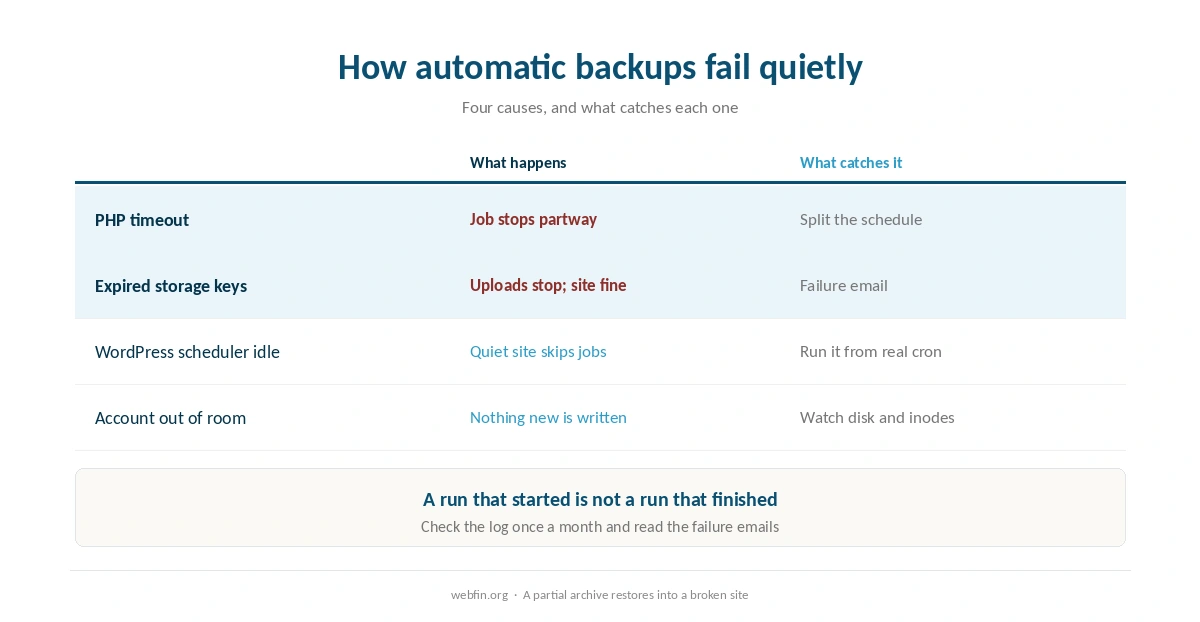
Check the log once a month. What you are looking for is a run that finished, not a run that started: a job that times out halfway leaves a partial archive that restores into a broken site.
Step 7: Restore One, on Purpose
A backup nobody has restored is a plan rather than a backup. Every few months, restore the most recent copy to a staging site and click through the front page, a product or post, and the login. Then delete the staging copy.
Restoring to staging rather than production is the whole point: you learn the process without risking the live site. Our guide to setting up a staging site covers the copy, and pushing a staging database over a live one is exactly what to avoid while testing.
What Breaks Automatic Backups
A PHP timeout on a large site. The job stops partway. Split the schedule: database separately from files, and exclude caches and other archives from the file job.
Expired credentials at the destination. Cloud storage keys and tokens expire. This one is easy to miss, and the failure email is what catches it.
WordPress’s own scheduler not firing. It runs on visits, so a quiet site may skip jobs. On a host with cron, run the plugin’s job from a real cron entry instead.
The account running out of room. Retained archives fill the disk or the inode allowance, and then nothing new is written. Our guide to checking whether your host is throttling you shows where those limits appear.
A Setting for Each Kind of Site
A blog or brochure site. Database daily, files weekly, copies off the host, fourteen days of daily retention.
A store. Database every few hours if the tool allows, files weekly, and a manual copy before every plugin update. Orders arrive at all hours.
A membership site. Database daily at least, and test restores more often, because member records are the product. Our list of hosting for membership sites covers the rest.
A portfolio with a large image library. Files weekly, but keep the originals on your own drive so the host holds only display copies. Our list of hosting for portfolio sites covers the storage side.
How We Research
This guide describes procedures rather than measurements, and it runs no tests. Backup frequencies, retention figures and add-on prices come from the hosts’ own pages and from the benchmark project we cite, as recorded in our reviews and read on 20 September 2026.
Tool names change often, so the steps describe what to look for rather than one plugin’s menus. The criteria behind our scores are on our about page. Two hosts that include daily copies are covered in our Scala Hosting review, and our Kinsta review describes the second.
Automatic Backups FAQ
Match the database to how often the site changes and the files to how often you update them. Daily database copies fit a site that changes daily, a store benefits from more, and weekly file copies plus one before each update cover the files.
It depends on frequency, retention and where the copy lives. ChemiCloud states ten days on its entry plan, Bluehost Starter keeps weekly copies, and HostGator calls its weekly copies a courtesy. Keep your own copies off the host regardless.
Outside the hosting account: object storage, a cloud drive or your own computer. Copies kept in the account share its fate if it is suspended or compromised, and they count against its disk and inode limits.
Four causes to check: a PHP timeout on a large job, expired credentials at the storage destination, WordPress’s scheduler not firing on a quiet site, and the account running out of room. Failure emails catch all four.
Restore one to a staging site every few months and click through the front page, a product or post, and the login. A backup nobody has restored is a plan rather than a backup.
The Verdict
Automatic backups are a half-hour setup and a monthly glance. Choose one place for the automation, split the database and files into separate schedules, send both off the host, keep a rotation rather than a single retention figure, and switch on failure alerts.
Then restore one on purpose, to a staging copy, before you ever need to in a hurry. That single habit is what separates a backup from an intention, and it is also the fastest way to find out that the chain has been broken for weeks. Our guide to recovering a hacked website covers the day you are glad you checked.