
Disclosure: WebFin is reader-supported. If you buy hosting through links on this page, we may earn a commission at no extra cost to you. Commissions vary between providers and our ratings do not — here’s our full disclosure.
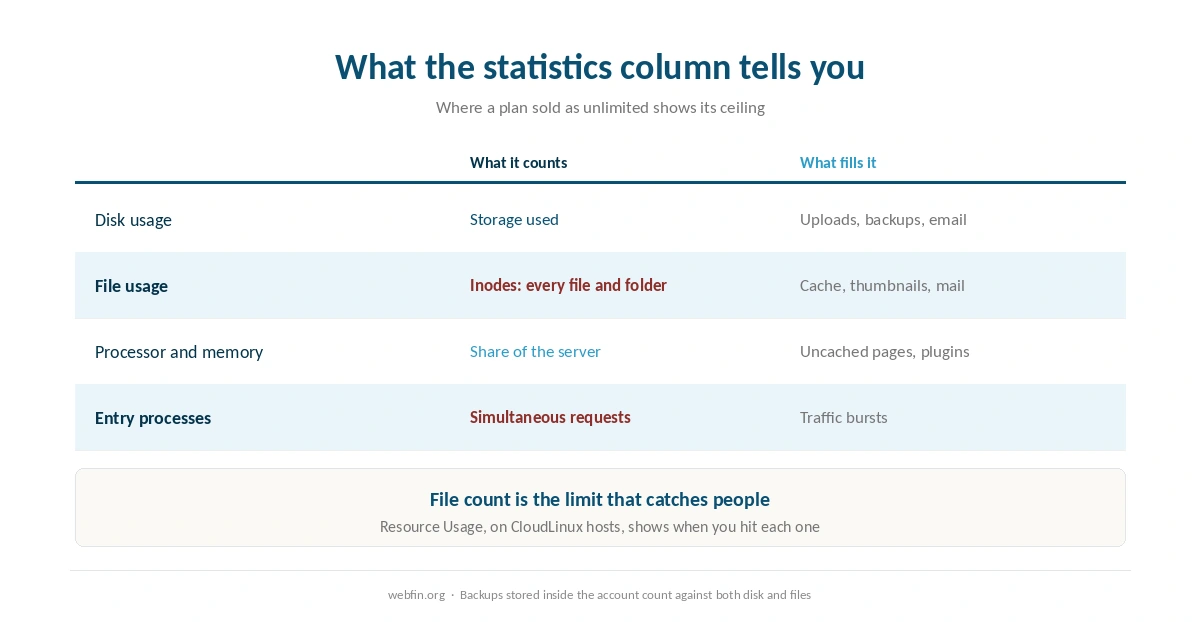
To understand cPanel, start with the column of numbers down the side of the home screen, not the grid of icons in the middle. The icons are tools, and you will use perhaps eight of them. The numbers are your plan’s real limits: disk, file count, processor and the number of processes the site may run at once. They are where a plan sold as unlimited shows its ceiling, and cPanel is one of the few places a customer can see it. This guide covers the sections that matter and the few buttons that can break a site.
How to Understand cPanel: The Short Answer
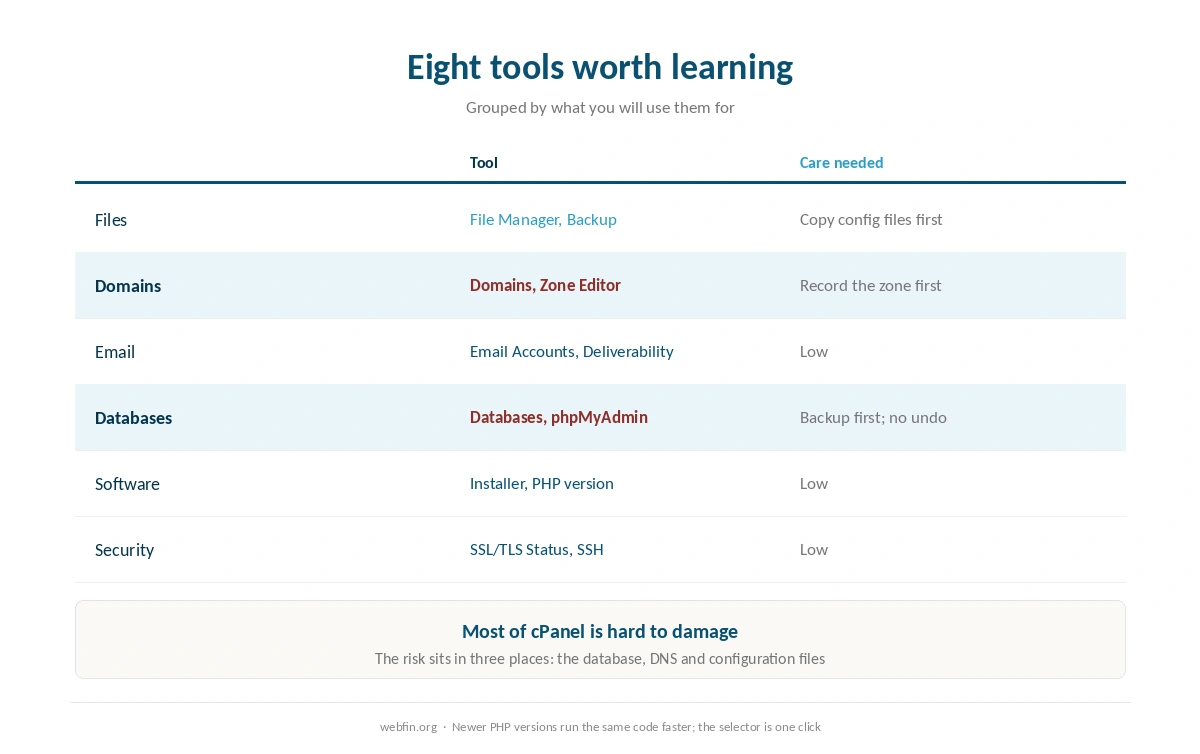
cPanel is the control panel many shared hosts give you for files, domains, email, databases and security. Read the statistics column first, because it shows your limits. Then learn eight tools: File Manager, Backup, Domains, Zone Editor, Email Accounts, databases, the PHP version selector and SSL status. Take a backup before touching anything in the database or DNS sections.
Why cPanel Matters Before You Buy
cPanel is licensed software that hosts pay for per account, and that cost is the reason several companies built their own panels instead. SiteGround runs Site Tools, Scala Hosting runs SPanel, and Hostinger, DreamHost and IONOS each run their own. Managed WordPress hosts such as Kinsta and WP Engine have their own dashboards and no cPanel at all.
For a buyer the difference is portability. A cPanel account exports in a standard format that any other cPanel host can import, so leaving is routine. A proprietary panel means moving the site rather than the account, and the skills you learned do not transfer. Our guide to migrating web hosting covers both routes.
⚠️ Neither kind of panel is better in itself. Proprietary panels are often cleaner for beginners and can save the host a license fee. The trade is that every tutorial written for cPanel stops matching your screen.
Step 1: Read the Statistics Column
The right-hand column on the cPanel home screen lists what your account is using against what it is allowed. Disk usage is the obvious one. File usage, shown as a count of inodes, is the one that catches people, because every file and folder counts, including cached thumbnails and email.
On hosts that run CloudLinux, a Resource Usage page adds processor, memory, entry processes and input-output limits, with a history of when you hit them. That page answers the question plan pages avoid: what unlimited actually means for your account. Our piece on what unlimited hosting means explains where these ceilings come from.
| Host and plan | Limit | Where it's stated |
|---|---|---|
| Bluehost shared | 50,000 inodes — soft limit | Hosting Inode Limit article |
| Bluehost shared | 200,000 inodes — AUP threshold | Server Resource Limitations |
| Bluehost shared | 1,000,000 inodes — TOS violation | Hosting Inode Limit article |
| Bluehost shared | 5,000 tables or 10 GB, all databases | Server Resource Limitations |
| Bluehost shared | 5 GB per single database | Server Resource Limitations |
| Bluehost Starter | 100 MB per mailbox | Shared hosting prices page |
| WP Engine Startup | 25,000 monthly visits, then overage handling | Plan pages |
| WP Engine, by tier | 25,000 to 400,000 monthly visits | Plan pages |
| Rocket.net Starter | 25,000 monthly visits, 1 site, 10 GB storage | Plan pages |
| Namecheap EasyWP | 50,000 / 200,000 / 500,000 monthly visits by tier | Plan pages |
| Kinsta Starter | 25,000 monthly visits | Plan pages |
| Scala Hosting VPS | Priced per unit: $3 per core, $1 per gigabyte | Plan pages; adjustable anytime |
| HostGator shared | Weekly backups described as a courtesy, not guaranteed | Hosting terms |
| Liquid Web | Dedicated resources at every tier; no shared plan | Plan pages |
| InterServer Standard | Unlimited storage, bandwidth, email and websites | One plan, no tiers |
| GreenGeeks Lite | One website only | Plan pages |
| IONOS Plus | One email account bundled per plan | Plan pages |
| Hostinger, all plans | Not published | Hostinger support article, 28 Aug 2026 |
| Bluehost Starter | 10 GB NVMe storage | Plan pages, as listed in a 2026 audit |
| InMotion Core | One site, 10 email accounts, SSD storage; NVMe from Launch | TechRadar and a 2026 review |
| SiteGround shared | Shell access by tier — not recorded | Not stated on the plan pages we read, 20 Sep 2026 |
| Bluehost shared | Shell access by tier — not recorded | Not stated on the plan pages we read, 20 Sep 2026 |
| Hostinger, all plans | Shell access by tier — not recorded | Not stated on the plan pages we read, 20 Sep 2026 |
| Cloudways servers | Search service (OpenSearch, Elasticsearch) — not recorded | Not stated on the plan pages we read, 20 Sep 2026 |
Step 2: Files and Backups
File Manager lets you browse, upload and edit the files of your site in the browser. Turn on hidden files in its settings to see configuration files such as .htaccess, which controls redirects and several security rules. Edit those with care, and download a copy first.
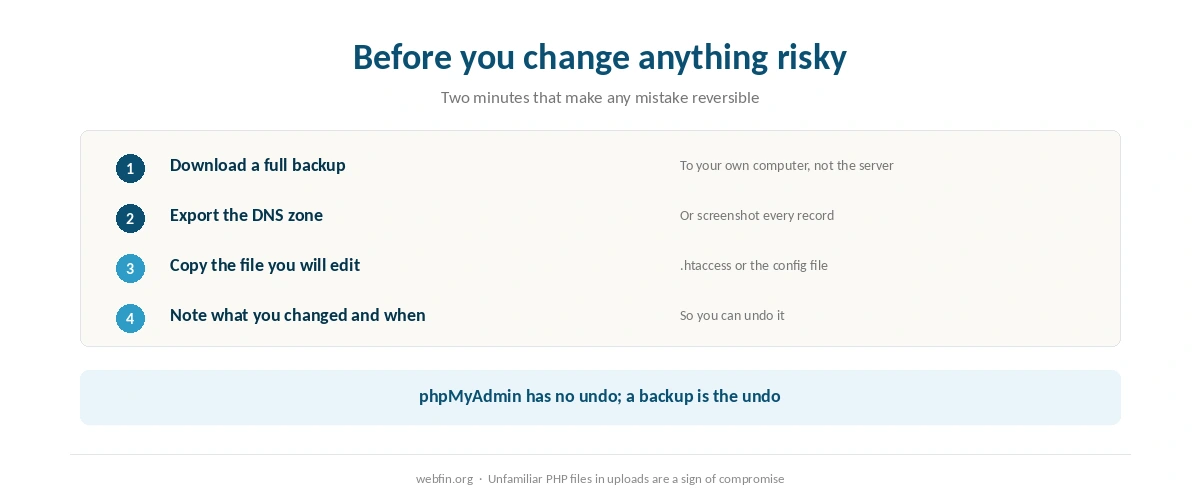
Backup and Backup Wizard create a full copy of the account, or separate copies of the files, databases and email. Download one to your own computer before any major change. A backup kept only on the same server protects you from mistakes, not from losing the account. Our guide to backing up a WordPress site covers the full routine.
Step 3: Domains and DNS
The Domains section adds a second site to the account, creates subdomains and sets redirects. Zone Editor holds the DNS records for domains whose nameservers point at this host: A records for the website, MX for email, TXT for verification and email authentication.
⚠️ Zone Editor is where a single deleted line can stop email for a whole company. Before editing, export or screenshot the existing records. Our guide to pointing a domain to a new host explains which records matter and why.
Step 4: Email
Email Accounts creates mailboxes on your domain and shows each one’s quota, which is where a plan’s mailbox limit becomes visible. Forwarders send mail for an address to another inbox without creating a mailbox at all.
Email Deliverability checks whether your domain’s SPF and DKIM records are correct and offers to repair them. It is the quickest way to find a missing or broken SPF or DKIM record on a cPanel host. Our guide to setting up email on your domain covers the records it checks.
Step 5: Databases
WordPress keeps its content in a database, and cPanel manages it in two places. The databases section creates databases and users and grants permissions. phpMyAdmin lets you view and edit the tables directly.
⚠️ phpMyAdmin is the most dangerous tool in the panel for a beginner. A single dropped table can remove a site’s content, and there is no undo. Use it only with a fresh backup, and only when you know exactly which table you are changing and why.
Step 6: Software, PHP and Security
The software section installs applications such as WordPress in a few clicks, through a toolkit or an installer the host provides. The PHP version selector, often called MultiPHP Manager, sets which PHP version each site runs. Newer versions run the same code faster, which our guide to reducing TTFB counts among the free speed fixes.
SSL/TLS Status shows whether each domain has a valid certificate, and AutoSSL issues and renews free ones automatically on most hosts. SSH Access, where the plan allows it, gives you a command line for tools such as WP-CLI. Our guide to installing an SSL certificate covers the cases AutoSSL misses.
The Three Buttons to Respect
phpMyAdmin. Direct access to the database, with no undo. Back up first.
Zone Editor. Deleting an MX or TXT record can stop email or break verification for services you forgot you connected. Record the zone first.
File Manager on configuration files. A typo in .htaccess or the WordPress configuration file can take the site down with a server error. Download a copy before editing, so you can put it back.
Everything else in cPanel is hard to damage. If a site does go down after a change, our guide to fixing a website that is down starts with the checks that find the cause fastest.
What to Do If Something Looks Wrong
File usage is near the limit. Clear cache folders, old backups stored inside the account and unused plugins. Email folders count too.
Resource Usage shows frequent faults. The site is hitting processor or process limits under traffic. Caching helps first; a larger plan second.
Email Deliverability shows red. Accept its suggested records, then send a test to a Gmail address and check that SPF and DKIM pass.
You see files you did not create. Unfamiliar PHP files in the uploads folder are a sign of compromise. Our guide to recovering a hacked website sets out the order.
How We Research
This guide describes the standard cPanel interface rather than one host’s version, and hosts rename, hide or reorder some sections. Which hosts use cPanel and which run their own panels comes from the providers’ pages as recorded in our reviews, read on 20 September 2026.
Plan limits referred to above sit in the table in Step 1. The criteria behind our scores are on our about page, and hosts that suit a first site are compared in the best hosting for beginners.
cPanel FAQ
Managing a hosting account: files, backups, domains and DNS records, email accounts, databases, software installs, PHP versions and security certificates. A small site needs about eight of its tools, and the statistics column shows the plan’s real limits.
Many shared hosts, including InterServer, InMotion, Namecheap, GreenGeeks, ChemiCloud and Newfold Digital’s Bluehost behind its own dashboard. SiteGround, Scala Hosting, Hostinger, DreamHost and IONOS run their own panels, and managed WordPress hosts use their own dashboards.
Not in itself. cPanel’s advantage is portability, because accounts export in a standard format and every tutorial matches. Proprietary panels are often simpler for beginners. The trade is how easily you can leave later.
In the statistics column on the home screen, which shows disk and file usage, and on the Resource Usage page on hosts running CloudLinux, which adds processor, memory and process limits with a history of when you hit them.
Be careful with phpMyAdmin, the Zone Editor and configuration files in File Manager. Each can break the site or email with one change and none has an undo. Take a backup and record the DNS zone before using them.
The Verdict
cPanel is less complicated than its home screen suggests. Read the statistics column, learn eight tools, and treat three of them with respect. Most of what a small site needs from hosting happens in those eight, and the rest can wait until there is a reason.
It also matters when choosing a host. A cPanel host is easier to leave and easier to follow tutorials on, while a proprietary panel may be simpler on day one. Decide which you value before you buy. Our review of InterServer and our comparison of Bluehost against InMotion, both cPanel hosts, are good places to start.