
Disclosure: WebFin is reader-supported. If you buy hosting through links on this page, we may earn a commission at no extra cost to you. Commissions vary between providers and our ratings do not — here’s our full disclosure.
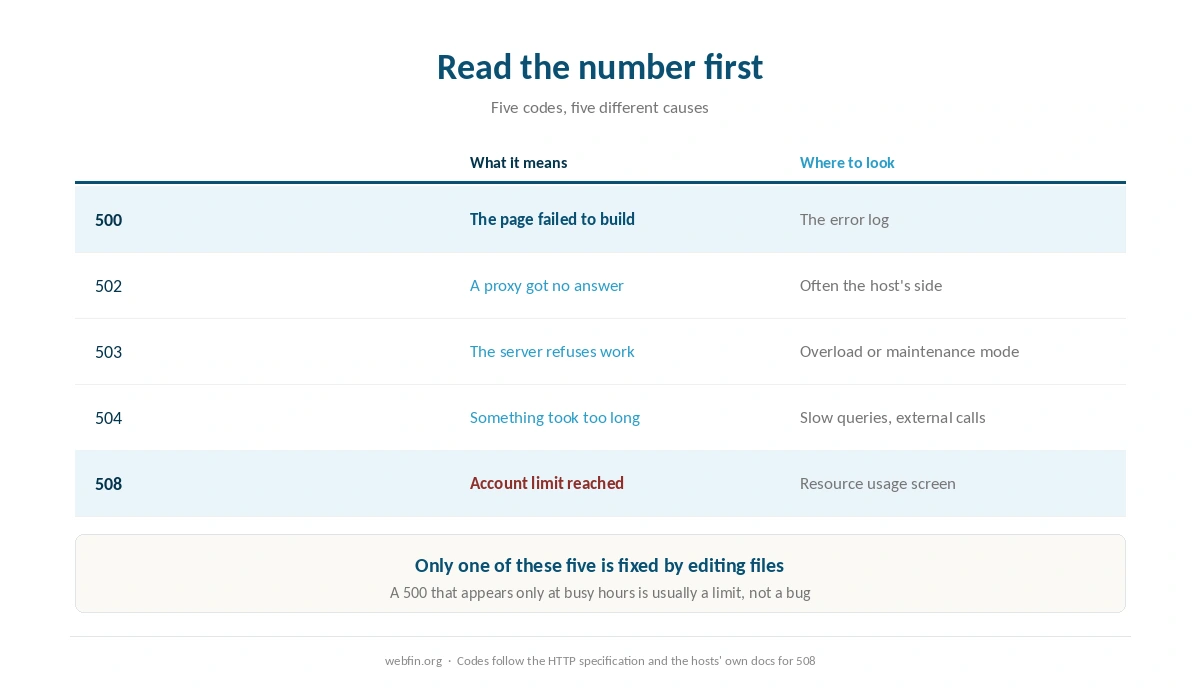
A 500 error means the server tried to build your page and failed. Nothing is wrong with the visitor’s browser, and nothing is wrong with your domain. Most guides start by telling you to deactivate plugins, which is guessing. Start instead by reading the error log, because it names the file and the line. And check the exact number first, because a 508 is not a bug at all: it means the plan ran out of room, and no amount of file editing will fix it.
How to Fix a 500 Error: The Short Answer
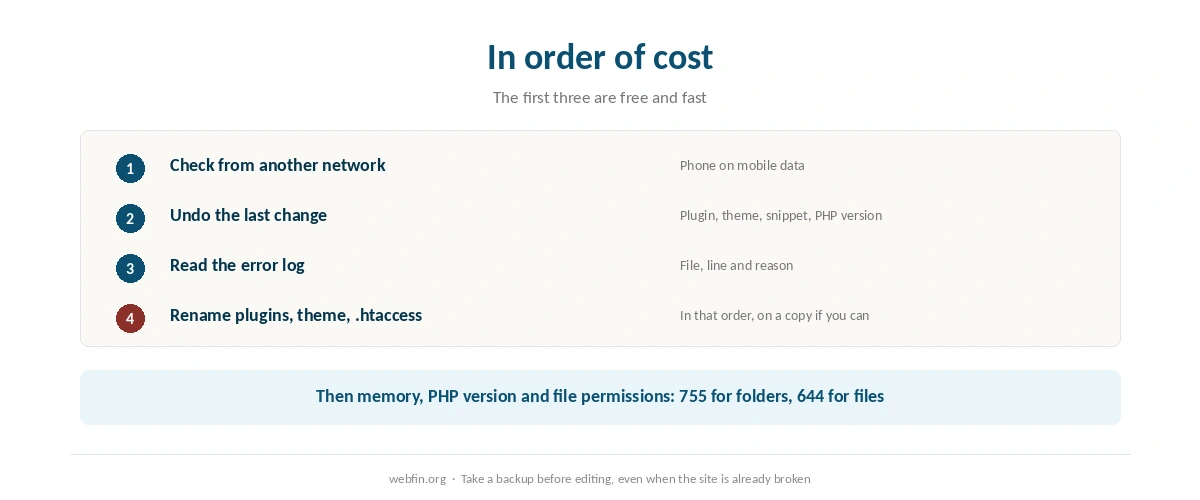
Check whether the site is down for everyone or just you. Note the exact code, because 500, 502, 503, 504 and 508 have different causes. Open the error log in your hosting panel and read the last entries. Undo whatever changed most recently. Then, if the log is silent, rename the plugins folder, switch to a default theme, and rename .htaccess in that order.
First, Read the Number
500 Internal Server Error. Something in the code or configuration failed. This is the one the log will explain.
502 Bad Gateway. A proxy or edge network could not get an answer from the server behind it. Often temporary, and often the host’s side.
503 Service Unavailable. The server is refusing work, because it is overloaded or in maintenance mode. A WordPress update that stalls leaves this behind.
504 Gateway Timeout. Something took too long. Look at slow queries and external calls rather than at broken code.
508 Resource Limit Reached. Your account hit a limit the host sets, most often concurrent processes. This is a plan problem, and our guide to checking whether your host is throttling you shows where to confirm it.
Step 1: Is It You or Everyone?
Load the site on a phone using mobile data, not your own network. If it works there, the problem may be your connection, your DNS or a cached copy in your browser.
Then check the host’s status page. A 500 that arrives without you changing anything, on a shared plan, is often the host. Our guide to fixing a website that is down covers the wider outage case.
Step 2: What Changed Last?
Almost every self-inflicted 500 follows a change: a plugin update, a theme edit, a new snippet, a PHP version switch in the panel. Undo the most recent one before touching anything else.
If the change came from an automatic update, the log will name it. If you cannot reach the dashboard at all, the file manager or SFTP is how you undo it, and a backup from before the change is the fastest route of all, as our guide to backing up a WordPress site explains.
Step 3: Read the Error Log
In cPanel the shortcut is the Errors tool, which shows recent entries. The raw log sits beside the site files in most setups. Our guide to understanding cPanel covers finding both.
A useful entry names a file, a line and a reason: a missing function, an out-of-memory condition, a syntax error in a snippet you pasted. That is the whole diagnosis, and it takes a minute to find.
If the log is empty, turn on WordPress debug logging rather than debug display, so errors go to a file instead of appearing on the page for visitors. Then reload the broken page once and read the new lines.
Step 4: Rule Out Plugins and the Theme
Rename the plugins folder to plugins-off using the file manager or SFTP. If the site returns, a plugin is the cause: rename the folder back, then deactivate plugins one at a time until the error returns.
If plugins are not the cause, switch to a default theme by renaming the active theme’s folder. WordPress falls back automatically when the active theme is missing.
⚠️ Do this on a staging copy when the site earns money. Renaming folders on a live site is fast and blunt, and our guide to setting up a staging site covers making a copy in ten minutes.
Step 5: .htaccess, Memory and PHP
.htaccess. Rename it to .htaccess-old and reload. If the site returns, the file was the problem: log in and re-save permalinks to write a clean one.
Memory. An out-of-memory line in the log means the PHP memory limit is too low for what a plugin is doing. Raising it in wp-config.php is a stopgap; the real fix is the plugin or a plan with more memory.
PHP version. A version switch in the panel can break an old plugin instantly. Switch back, then update the plugin before trying again.
Permissions. Folders at 755 and files at 644 is the normal pattern. A bad restore or an unzip with wrong permissions produces 500s that look mysterious.
Step 6: When It Is the Plan, Not the Code
A 508, or a 500 that appears only at busy hours, points at account limits rather than bugs. Entry process faults are the signal, and they sit in the resource usage screen on most shared plans.
Two things fix that: reducing the work per request, or buying more room. Caching and turning off expensive features do the first, and our guide to handling a traffic spike covers the emergency version. For the second, a server sized to the work beats a bigger shared tier, as our guide to moving from shared to VPS explains.
Step 7: If Nothing Works, Give Support the Facts
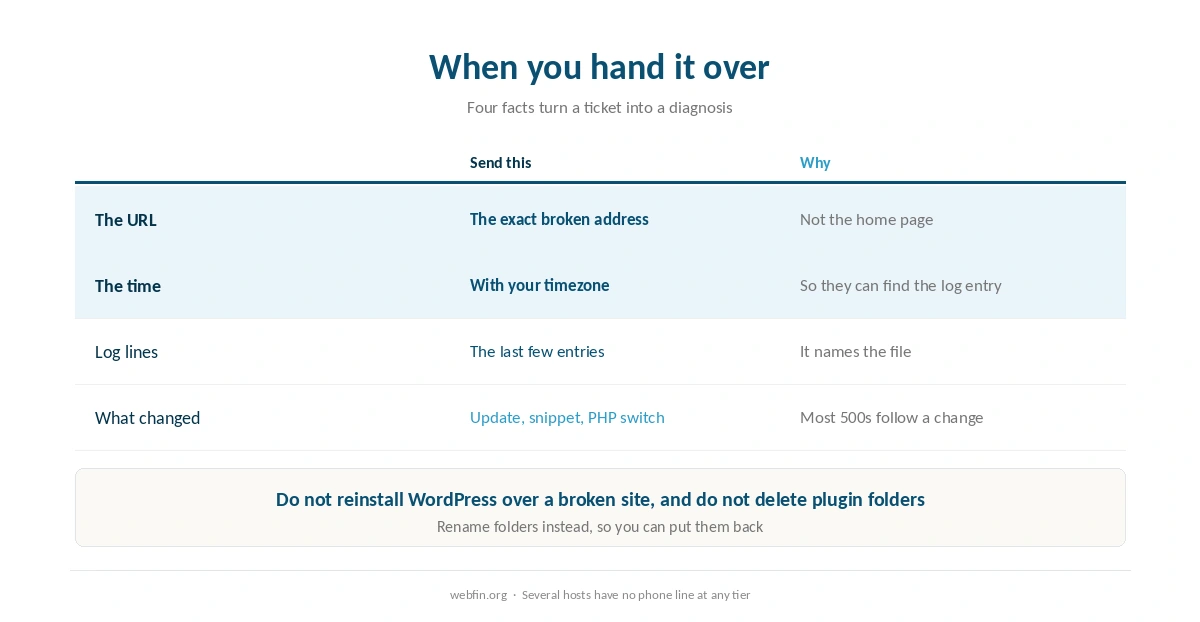
Send four things: the exact URL, the time the error happened with your timezone, the last lines of the error log, and what changed recently. That turns a ticket into a diagnosis rather than a conversation.
Which channel you have depends on the host, and the table below records what each one publishes. A phone line matters most at three in the morning, and several hosts do not have one at any tier.
| Host | Channel and response | Source and date |
|---|---|---|
| Liquid Web | Phone and chat, 59 seconds by contract | Published service commitment, 2026 |
| InMotion | Phone, chat and tickets, 24/7 from US staff | Several 2026 reviews; no timed measurement |
| HostGator | Phone, chat and tickets, 24/7 | Published channels, 2026 |
| GoDaddy | Phone in more countries than most, 24/7 | Published channels, 2026 |
| IONOS | Phone plus a named consultant per account | Company statement; one review disputes it |
| SiteGround | Phone, chat and tickets, 24/7 | Several 2026 reviews; no timed measurement |
| Rocket.net | Chat under a minute; phone from Business tier | Published accounts, 2026 |
| Hostwinds | Chat and tickets, 24/7 in house; 4.9 of 5 | Aggregate of 400+ business reviews, 2026 |
| ChemiCloud | Chat and tickets, 24/7; praised in every source | 2026 reviews; no timed measurement |
| Scala Hosting | Chat and tickets, 24/7 | 2026 reviews; no timed measurement |
| Hostinger | Chat and email, AI assistant first, no phone | Published channels, 2026 |
| Namecheap | Chat and tickets, 24/7, no phone | Published channels, 2026 |
| A2 Hosting | Disputed: one review lists 24/7 phone, customers say removed | Two 2026 sources in conflict |
| GreenGeeks | Chat and tickets 24/7; phone not around the clock | Published channels, 2026 |
| WP Engine | Chat and tickets 24/7; phone on higher tiers | Published channels, 2026 |
| InterServer | Chat, phone and tickets, 24/7 | Published channels, 2026 |
| DreamHost | Chat, email and tickets; no telephone line | Published channels, 2026 |
| Kinsta | Chat and tickets 24/7; no telephone line | Published channels, 2026 |
| Cloudways | Chat and tickets 24/7; phone on paid add-on | Published channels, 2026 |
| Bluehost | Phone and chat, 24/7 | Published channels, 2026 |
Preventing the Next One
Update on a copy. A staging site turns a broken update into a non-event.
Keep a backup you have restored. An untested backup is a hypothesis rather than a safety net.
Watch the resource screen monthly. Faults creeping upward are the warning before the 508.
Know your host’s channels before you need them. Several hosts have no phone line at any tier, which our list of hosting for local business weighs for owners who want to call someone.
What Not to Do
Do not reinstall WordPress over a broken site. It rarely helps and it can lose content.
Do not leave debug display on. It shows file paths to visitors, which is both ugly and a security hint.
Do not delete plugin folders. Rename them, so you can put them back.
Do not skip the backup. Take one before you start editing, even when the site is already broken, and our guide to setting up automatic backups covers making this automatic.
A Different Error, Often Confused With This One
A page saying there is an error establishing a database connection is not a 500. It means WordPress reached the server but could not reach the database. The usual causes are the credentials in wp-config.php or a database service that is down.
And a hacked site can produce 500s from injected code. If the log names files you do not recognize, treat it as a compromise and follow our guide to recovering a hacked website instead of debugging.
How We Research
This guide describes procedures rather than measurements, and it runs no tests. The support channels named in the table come from the providers’ own pages, read on 20 September 2026. Error codes and their meanings follow the HTTP specification and the hosts’ own documentation for 508.
Plugin-specific failures are outside what we review, because they depend on the plugin rather than the host. The criteria behind our scores are on our about page, and our guide to reducing TTFB covers the slow-but-working case.
500 Error FAQ
Something in the code or configuration failed while building the page: a plugin conflict, a bad snippet, a broken .htaccess, an out-of-memory condition or a PHP version mismatch. The error log names which one.
In cPanel, the Errors tool shows recent entries, and the raw log sits beside the site files in most setups. If it is empty, enable WordPress debug logging to a file rather than to the screen, then reload the broken page once.
No. A 508 means your account reached a limit the host sets, most often concurrent processes. It is a plan problem rather than a bug, so caching, fewer expensive features or a bigger plan are the fixes.
Yes. Use the file manager or SFTP: rename the plugins folder, rename the active theme’s folder, and rename .htaccess. Each of those undoes a common cause without any admin access.
Read the log first, then contact them with facts: the URL, the time with your timezone, the last log lines and what changed. Some hosts answer by phone around the clock and several have no phone line at all.
The Verdict
A 500 error is usually a five-minute problem read as a five-hour one, because people start with guesses instead of the log. Note the exact code, rule out your own network, read the log, undo the last change. Only then start renaming folders.
And when the code is a 508 or the errors cluster at busy hours, stop debugging: that is the plan talking. Fix it with caching or capacity rather than files, and take a backup before you touch anything either way. Our list of hosting for developers records which hosts put logs and SSH within reach.