
Disclosure: WebFin is reader-supported. If you buy hosting through links on this page, we may earn a commission at no extra cost to you. Commissions vary between providers and our ratings do not — here’s our full disclosure.
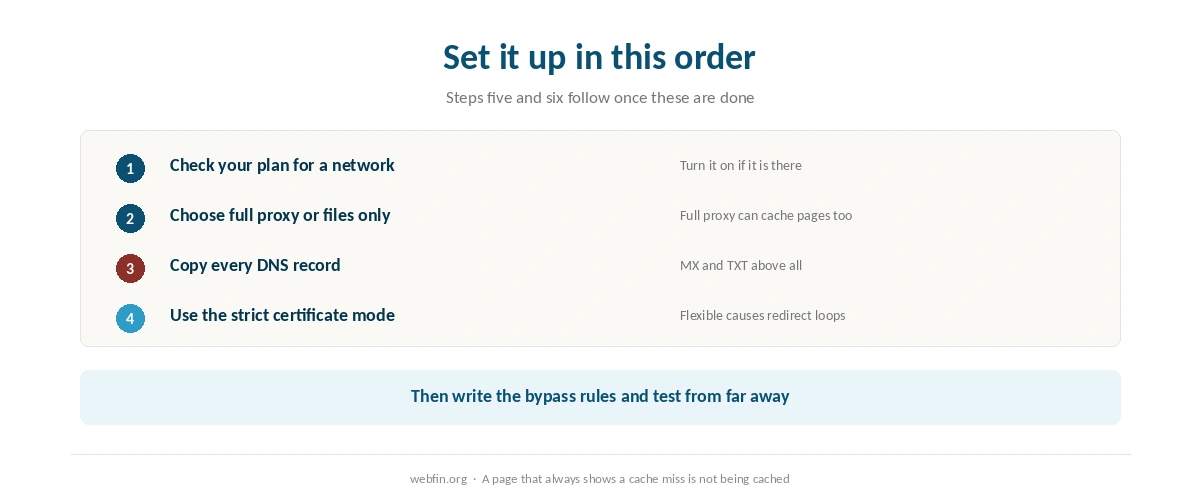
To set up a CDN, first check whether your hosting plan already includes one, because paying twice is an easy mistake to make. Then choose how much traffic goes through the network. Copy your DNS records before changing anything, set the certificate mode correctly, and tell the network which pages it must never cache. That last step matters most for stores, because a cached checkout can show one customer’s cart to another. Caching before a spike is covered in how to handle a traffic spike.
How to Set Up a CDN: The Short Answer
Check your plan for a built-in network. If there is none, point your nameservers at a CDN that proxies the whole site, or add a CDN subdomain for images, scripts and styles. Copy every DNS record first, use full certificate checking rather than flexible, exclude carts, checkouts and account pages from caching, then test from several locations.
Step 1: Check Whether You Already Have One
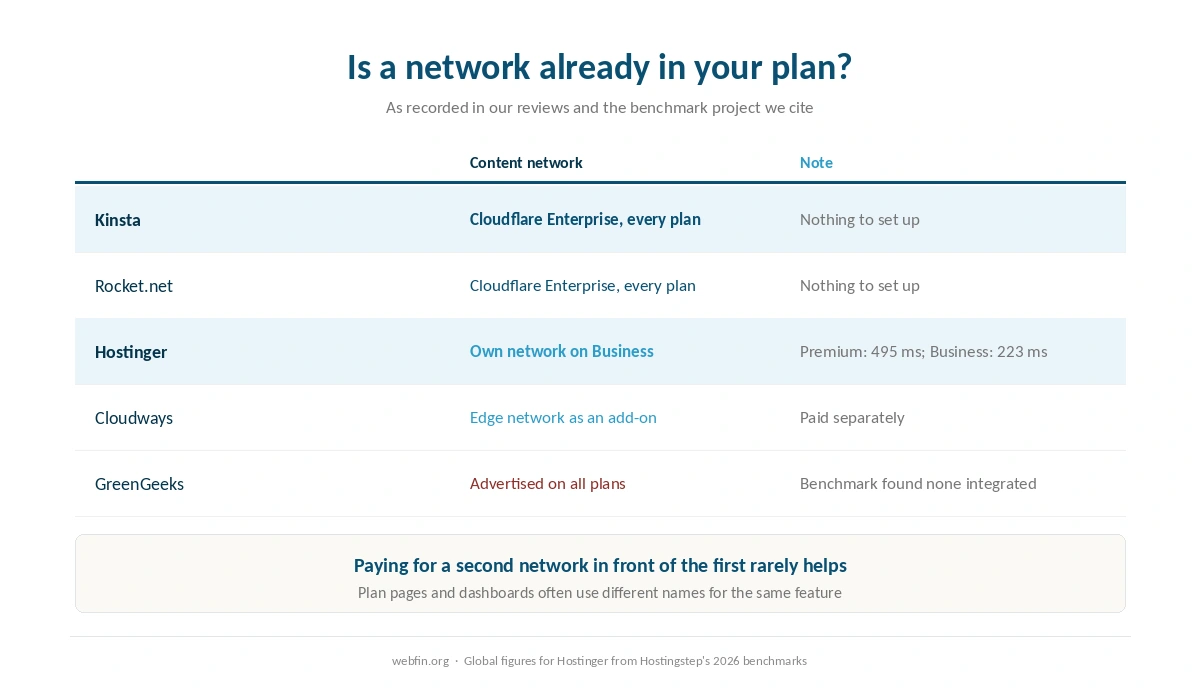
Several hosts include a content network, and they describe it in different words, which is how people end up paying twice. Kinsta and Rocket.net ship Cloudflare Enterprise on every plan. Hostinger builds its own network and puts it on Business but not on Premium. That is why the benchmark project we cite records Premium at 495 ms globally and Business at 223 ms.
Others sell it separately. Cloudways offers its edge network as an add-on, as our Cloudways review notes. GreenGeeks advertises Cloudflare integration on all plans, and the same benchmark project reports finding no integrated network, as our GreenGeeks review records. Check your own dashboard rather than the plan page. Our Hostinger review shows what the difference between two tiers looks like in practice.
⚠️ If your plan includes a network, turn it on and stop here. Adding a second CDN in front of the first usually makes caching harder to reason about and rarely makes anything faster.
| Host | Measurement | Source and date |
|---|---|---|
| WP Engine | Global TTFB 65 ms, 1st of 34 hosts | Hostingstep, 2025 ranking, 40 locations |
| WP Engine | US TTFB 365 ms across 22 locations | Hostingstep, 2025 ranking |
| WP Engine | TTFB 355 ms, 349,920 checks | Hostingstep, Oct 2025 – May 2026 |
| WP Engine | Uptime 99.976%, 10th of 14 managed hosts | Study of 14 managed hosts, 2026 |
| WP Engine | Load 27 ms at 0% errors | Hostingstep, 2026 benchmarks |
| Rocket.net | Cached TTFB 85 ms globally | 12-month test, Mar 2025 – Mar 2026 |
| Rocket.net | Origin TTFB 310 ms; checkout bypasses cache | Same 12-month test |
| Rocket.net | Uptime 99.97%, seven outages in the window | Hostingstep, Oct 2025 – May 2026 |
| Rocket.net | Hardware score fell 8.5 → 7.5; not recommended | Hostingstep, 2026, tracked since Oct 2020 |
| Hostinger Business | Global TTFB 223 ms, 5th of 34 hosts | Hostingstep, 2026 |
| Hostinger Premium | Global TTFB 495 ms, 28th of 34; no CDN | Hostingstep, 2026 |
| Hostinger | TTFB 707 ms; server response 246 ms | Cybernews, June 2026 |
| Hostinger | Uptime 99.99%, 33 min down in 2025 | Hostingstep, continuous since 2021 |
| Hostinger | Uptime 99.93%, 6-month window | HostPro Reviews, 2026 |
| Hostinger | LCP 0.607 s, 2nd of 15 hosts | TechRadar, 10-week window, 2026 |
| Bluehost | Hardware score 9.6 of 10 | Hostingstep, 2026 |
| Bluehost | Load 41 ms at 0% errors after the Oracle move | Hostingstep changelog, 9 Jul 2026 |
| Bluehost | Response 411 ms; uptime 99.99% across 9 outages | Hostingstep, Nov 2025 – Aug 2026 |
| Bluehost | Global TTFB 224 ms across 40 locations, cached | Hostingstep Bluehost review, Jul 2026 |
| HostGator | Global TTFB 1.23 s; uptime 99.68%; 762 ms at 500 users | Hostingstep HostGator review, 2026 |
| HostGator | Hardware joint-highest in the field after the Oracle move | Hostingstep, 1 Sep 2026 update |
| ChemiCloud | US TTFB 531 ms; global 460 ms | Hostingstep, Oct 2025 – May 2026 |
| ChemiCloud | Load 1,068 ms at a 4.2% error rate | Hostingstep, same window |
| ChemiCloud | Uptime 99.76%; overall 6.1 of 10, degrading | Hostingstep, tracked since 2021 |
| GoDaddy shared | TTFB 751 ms; load test did not complete | Hostingstep, Nov 2025 – Jun 2026 |
| GoDaddy shared | Uptime 99.76% | Hostingstep, Nov 2025 – Jun 2026 |
| GoDaddy Managed WordPress | TTFB 344 ms; hardware 3.8 of 10 | Hostingstep, 2026 |
| GreenGeeks | TTFB 395 ms North America, 447 ms Europe | Long-term independent testing, 2026 |
| GreenGeeks | TTFB 580–610 ms Asia and Australia | Same testing window |
| GreenGeeks | Load 26 ms at 0% errors; WPBench 5.0 of 10 | Hostingstep, 2026 |
| GreenGeeks | 25 outages in the window; no integrated CDN found | Hostingstep, 2026 |
| Kinsta | Origin TTFB 525 ms; edge figures differ | Hostingstep, 2026 |
| Kinsta | Load 40 ms at 0% errors; WPBench 8.8 of 10 | Hostingstep, 2026 reviews |
| DreamHost | TTFB 450–500 ms band | Hostingstep, 2026 benchmarks |
| Scala Hosting | Uptime 99.97% across twelve months | Live site, 40,000 monthly visitors, UptimeRobot |
| Scala Hosting | 29 ms at the 95th percentile, 50 users | k6 load test, 2026 |
| InterServer | Uptime 99.98% across eighteen months | Six production sites, UptimeRobot |
| InterServer | Load under 700 ms; under 1.5 s by another source | Two 2026 reviews |
| A2 Hosting | TTFB 150–198 ms | 2026 studies; LiteSpeed on Turbo tiers |
| IONOS | Global TTFB 480 ms; WPBench 7.2 of 10 | Hostingstep, 2026 benchmarks |
| IONOS | Uptime 99.99%; load test failed at 65.4% errors | Hostingstep, 2026 benchmarks |
| Namecheap | TTFB 461 ms; global 448 ms; WPBench 5.0 | Hostingstep, Q4 2025; monitoring paused 30 Jun 2026 |
| InMotion | TTFB 300–500 ms shared | Published measurement, 2026 |
| InMotion | Uptime 99.97–99.99%; one account near 99.5% | Several 2026 sources |
| Hostwinds | No independent measurement found | 99.9999% is the company's own claim |
| Liquid Web | Not covered by the benchmarks we cite | VPS and dedicated are outside their scope |
| SiteGround | TTFB 632 ms; 22nd of 34 hosts | Hostingstep, 2026 benchmarks |
| SiteGround | Uptime 99.96% in 2025; 193 min over 44 outages | Hostingstep, full year 2025 |
| SiteGround | WPBench 8.4 of 10; load 170 ms at 0% errors | Hostingstep, Oct 2025 – May 2026 |
| Scala Hosting | TTFB 465 ms; global 501 ms | Hostingstep, 2026 benchmarks |
| Scala Hosting | WPBench 8.8 of 10; load 48 ms at 0% errors | Hostingstep, 2026 benchmarks |
| Scala Hosting | Uptime 99.98% across the year | Hostingstep, 2026 benchmarks |
| Cloudways | Vultr HF: load 288 ms at 1.7% errors; WPBench 7.6 | Hostingstep Cloudways review, 2026 |
| Cloudways | Uptime 99.996% to 99.999% across five plans | Hostingstep, Oct 2025 – May 2026 |
Step 2: Choose How Much Goes Through It
Full proxy. You point the domain’s nameservers at the CDN, and every request passes through it. The network can cache pages as well as files, and it can filter unwanted traffic before it reaches your server. This is how Cloudflare’s free plan works, and it is the most complete option.
Files only. You create a subdomain such as cdn.example.com that pulls images, scripts and styles from your site, and a plugin rewrites those links. Your DNS stays where it is. It speeds up heavy pages with less risk, and it does nothing for the HTML itself.
For a WordPress site the full proxy can give the larger gain, because it can cache the page itself as well as its files, which shortens the wait for the first byte. Our guide to reducing TTFB explains where that time goes.
A free plan is enough for many small sites. Paid tiers can add caching of whole pages rather than only files, image optimization and finer control over rules. Start with the free tier, measure, and pay only for a feature whose absence you can point to in the numbers.
Step 3: Copy Your DNS Records First
A full proxy takes over DNS, and it imports your existing records automatically. It does not always import all of them. Before switching nameservers, export or screenshot every record at your current DNS provider, then compare the imported list against it line by line.
The records that go missing are the quiet ones: MX for email, TXT for SPF and DKIM, and verification records for services you connected years ago. Keep mail records unproxied, because a CDN proxies web traffic, not email. Our guide to pointing a domain to a new host covers the same care in more detail.
Step 4: Set the Certificate Mode Correctly
A proxying CDN holds a certificate for visitors and connects to your server separately. The safe setting checks that your server also has a valid certificate, which most hosts issue free. The flexible setting sends traffic from the CDN to your server unencrypted, which is weaker and often causes redirect loops on WordPress sites that force HTTPS.
So confirm that your host has issued a certificate first, then choose the strict or full mode that validates it. If the site starts redirecting endlessly after the switch, this setting is the first thing to check. Our guide to installing an SSL certificate covers the host side.
Step 5: Decide What Must Never Be Cached
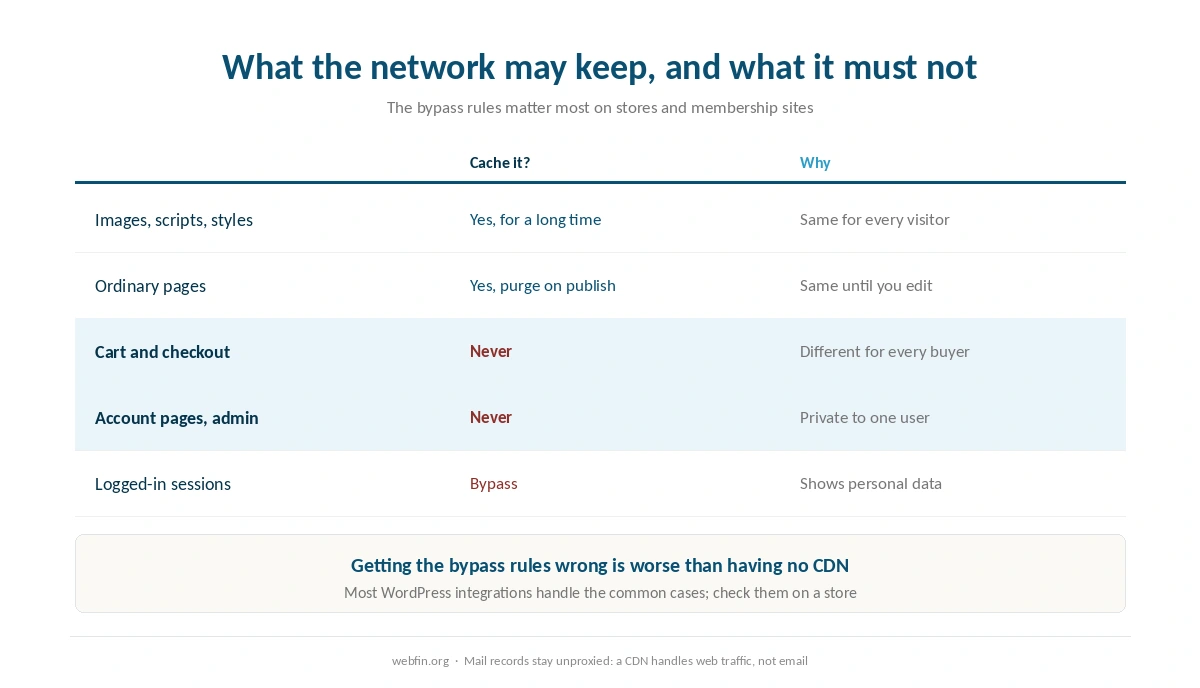
The network can keep images, scripts and styles for a long time. It can keep ordinary pages too, as long as you clear the cache when you publish. Some pages it must never keep at all. Those are carts, checkouts, account areas, the WordPress admin and anything that shows a logged-in user their own data.
⚠️ Getting this wrong is worse than having no CDN. A cached checkout can show one customer’s basket to another. Most WordPress integrations handle the common cases, but check the rules yourself on a store. Our guide to WooCommerce hosting explains which store pages bypass the cache and why.
Step 6: Test From More Than One Place
Load the site from a network you do not normally use, and check the response headers. Most CDNs add a header saying whether a request was a hit, served from the cache, or a miss, fetched from your server. A page that always misses is not reaching the cache, and the rules need another look.
Then measure first-byte time from several regions before and after, using the same pages. A working network should narrow the gap between nearby and distant visitors far more than it speeds up visitors close to your server. That gap is the thing you are paying to close.
What to Do If It Does Not Work
The site redirects endlessly. The certificate mode is set to flexible while WordPress forces HTTPS. Switch to full or strict mode.
Email stopped after the nameserver change. An MX or TXT record was not imported, or a mail record was proxied. Restore it exactly as it was, unproxied.
Visitors see an old version of a page. The cache was not cleared after an update. Purge it, and set your WordPress integration to purge on publish.
Logged-in users see someone else’s content. A private page is being cached. Add a rule that bypasses the cache for logged-in sessions and for cart and account pages at once. If the site is down entirely, our guide to fixing a website that is down starts with the DNS check.
How We Research
This guide describes procedures rather than measurements. Our list of which hosts include a network comes from the providers’ pages and the benchmark project we cite, read on 20 September 2026. The same sources show which sell it as an add-on and which advertise one the testers did not find. The Hostinger figures come from Hostingstep’s 2026 benchmarks.
We name settings generally, because each CDN labels them slightly differently. The criteria behind our scores are on our about page. Our Rocket.net review and our Kinsta review cover two hosts that include an edge network on every plan.
CDN Setup FAQ
Possibly. Kinsta and Rocket.net include Cloudflare Enterprise on every plan, and Hostinger includes its own network on Business but not Premium. Cloudways sells its edge network as an add-on. Check your dashboard, because plan pages and dashboards often use different names for it.
For visitors far from your server, usually a great deal; for visitors nearby, less. The benchmark project we cite records Hostinger Premium at 495 ms globally without a network and Business at 223 ms with one. Pages that cannot be cached gain little.
The certificate mode is usually set to flexible while WordPress forces HTTPS. Make sure your host has issued a certificate, then switch the CDN to its full or strict mode so it connects to your server over HTTPS.
An MX or TXT record was not imported, or a mail record was set to be proxied. Copy every record before switching, compare the imported list, and keep mail records unproxied.
Yes, with care. Cache images, scripts and ordinary pages, and never cache carts, checkouts, account pages or logged-in sessions. A cached checkout can show one customer’s basket to another.
The Verdict
Setting up a CDN is mostly about avoiding three mistakes. Do not pay for one you already have, do not lose DNS records in the switch, and do not cache pages that belong to one visitor. Check your plan, copy the records, choose the strict certificate mode, write the bypass rules, and test from somewhere far away.
Suppose your plan does not include a network and your readers are spread across the world. Then a host that does may be cheaper than adding one yourself. Our list of hosting for bloggers weighs that for content sites, and our roundup of hosting for high traffic covers busy ones.