
Disclosure: WebFin is reader-supported. If you buy hosting through links on this page, we may earn a commission at no extra cost to you. Commissions vary between providers and our ratings do not — here’s our full disclosure.
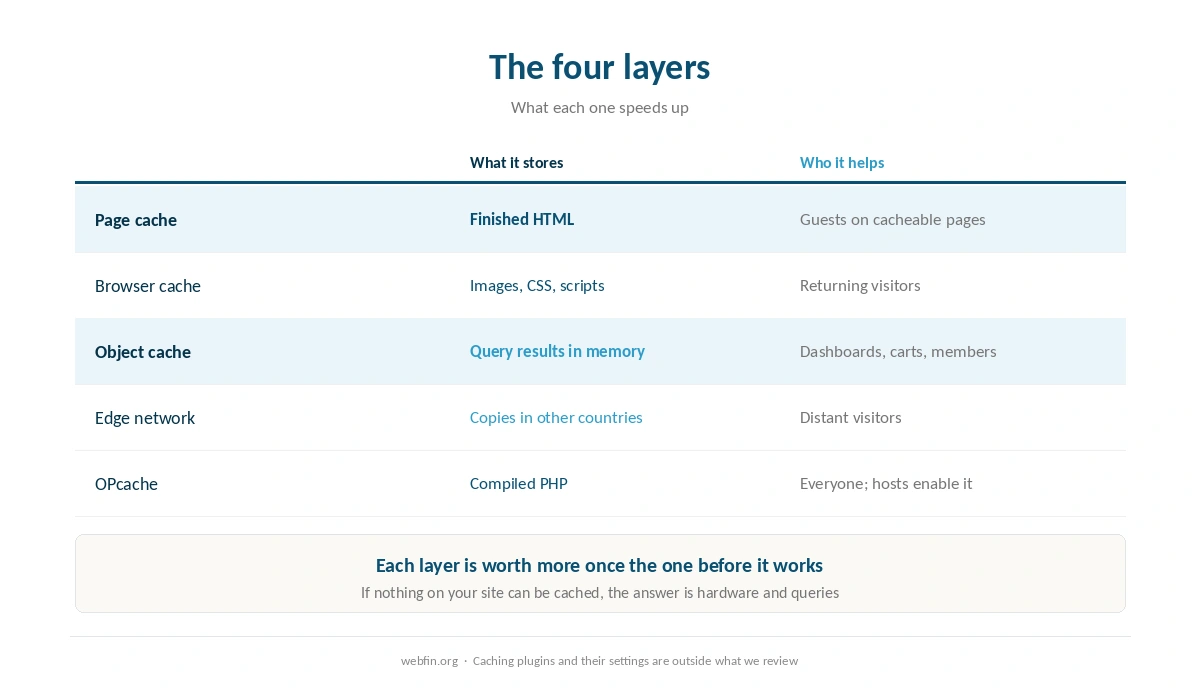
Caching has four layers, and they are worth enabling in a specific order. Page caching first, because it does most of the work. Then browser headers, then object caching if your host offers it, then an edge network. What matters more than any of them is the exclusion list: a cached cart can show one customer’s basket to another, and that single mistake undoes every speed gain.
How to Configure Caching: The Short Answer
Turn on page caching at the server level if your host has it, or with one plugin if not. Set long expiry headers on images, CSS and scripts. Exclude cart, checkout, account pages and logged-in users from the page cache. Add object caching when the dashboard or a member area is slow. Add an edge network when visitors are far away. Never run two page caches at once.
The Four Layers, and What Each One Does
Page cache. Stores the finished HTML so the server does not rebuild it. This is the largest single win for a blog, a brochure site or a catalog page.
Browser cache. Expiry headers tell a visitor’s browser to keep images and scripts, so a second page view downloads almost nothing.
Object cache. Redis or Memcached keeps query results in memory. This is the layer that helps pages a page cache cannot serve, which our guide to fixing a slow database covers.
Edge network. Copies of cached pages and files in other countries. It does nothing for uncached routes, as our guide to setting up a CDN explains.
⚠️ There is a fifth layer you do not configure: PHP bytecode caching, known as OPcache. Hosts switch it on, and there is nothing to do beyond leaving it alone.
| Host | Measurement | Source and date |
|---|---|---|
| WP Engine | Global TTFB 65 ms, 1st of 34 hosts | Hostingstep, 2025 ranking, 40 locations |
| WP Engine | US TTFB 365 ms across 22 locations | Hostingstep, 2025 ranking |
| WP Engine | TTFB 355 ms, 349,920 checks | Hostingstep, Oct 2025 – May 2026 |
| WP Engine | Uptime 99.976%, 10th of 14 managed hosts | Study of 14 managed hosts, 2026 |
| WP Engine | Load 27 ms at 0% errors | Hostingstep, 2026 benchmarks |
| Rocket.net | Cached TTFB 85 ms globally | 12-month test, Mar 2025 – Mar 2026 |
| Rocket.net | Origin TTFB 310 ms; checkout bypasses cache | Same 12-month test |
| Rocket.net | Uptime 99.97%, seven outages in the window | Hostingstep, Oct 2025 – May 2026 |
| Rocket.net | Hardware score fell 8.5 → 7.5; not recommended | Hostingstep, 2026, tracked since Oct 2020 |
| Hostinger Business | Global TTFB 223 ms, 5th of 34 hosts | Hostingstep, 2026 |
| Hostinger Premium | Global TTFB 495 ms, 28th of 34; no CDN | Hostingstep, 2026 |
| Hostinger | TTFB 707 ms; server response 246 ms | Cybernews, June 2026 |
| Hostinger | Uptime 99.99%, 33 min down in 2025 | Hostingstep, continuous since 2021 |
| Hostinger | Uptime 99.93%, 6-month window | HostPro Reviews, 2026 |
| Hostinger | LCP 0.607 s, 2nd of 15 hosts | TechRadar, 10-week window, 2026 |
| Bluehost | Hardware score 9.6 of 10 | Hostingstep, 2026 |
| Bluehost | Load 41 ms at 0% errors after the Oracle move | Hostingstep changelog, 9 Jul 2026 |
| Bluehost | Response 411 ms; uptime 99.99% across 9 outages | Hostingstep, Nov 2025 – Aug 2026 |
| Bluehost | Global TTFB 224 ms across 40 locations, cached | Hostingstep Bluehost review, Jul 2026 |
| HostGator | Global TTFB 1.23 s; uptime 99.68%; 762 ms at 500 users | Hostingstep HostGator review, 2026 |
| HostGator | Hardware joint-highest in the field after the Oracle move | Hostingstep, 1 Sep 2026 update |
| ChemiCloud | US TTFB 531 ms; global 460 ms | Hostingstep, Oct 2025 – May 2026 |
| ChemiCloud | Load 1,068 ms at a 4.2% error rate | Hostingstep, same window |
| ChemiCloud | Uptime 99.76%; overall 6.1 of 10, degrading | Hostingstep, tracked since 2021 |
| GoDaddy shared | TTFB 751 ms; load test did not complete | Hostingstep, Nov 2025 – Jun 2026 |
| GoDaddy shared | Uptime 99.76% | Hostingstep, Nov 2025 – Jun 2026 |
| GoDaddy Managed WordPress | TTFB 344 ms; hardware 3.8 of 10 | Hostingstep, 2026 |
| GreenGeeks | TTFB 395 ms North America, 447 ms Europe | Long-term independent testing, 2026 |
| GreenGeeks | TTFB 580–610 ms Asia and Australia | Same testing window |
| GreenGeeks | Load 26 ms at 0% errors; WPBench 5.0 of 10 | Hostingstep, 2026 |
| GreenGeeks | 25 outages in the window; no integrated CDN found | Hostingstep, 2026 |
| Kinsta | Origin TTFB 525 ms; edge figures differ | Hostingstep, 2026 |
| Kinsta | Load 40 ms at 0% errors; WPBench 8.8 of 10 | Hostingstep, 2026 reviews |
| DreamHost | TTFB 450–500 ms band | Hostingstep, 2026 benchmarks |
| Scala Hosting | Uptime 99.97% across twelve months | Live site, 40,000 monthly visitors, UptimeRobot |
| Scala Hosting | 29 ms at the 95th percentile, 50 users | k6 load test, 2026 |
| InterServer | Uptime 99.98% across eighteen months | Six production sites, UptimeRobot |
| InterServer | Load under 700 ms; under 1.5 s by another source | Two 2026 reviews |
| A2 Hosting | TTFB 150–198 ms | 2026 studies; LiteSpeed on Turbo tiers |
| IONOS | Global TTFB 480 ms; WPBench 7.2 of 10 | Hostingstep, 2026 benchmarks |
| IONOS | Uptime 99.99%; load test failed at 65.4% errors | Hostingstep, 2026 benchmarks |
| Namecheap | TTFB 461 ms; global 448 ms; WPBench 5.0 | Hostingstep, Q4 2025; monitoring paused 30 Jun 2026 |
| InMotion | TTFB 300–500 ms shared | Published measurement, 2026 |
| InMotion | Uptime 99.97–99.99%; one account near 99.5% | Several 2026 sources |
| Hostwinds | No independent measurement found | 99.9999% is the company's own claim |
| Liquid Web | Not covered by the benchmarks we cite | VPS and dedicated are outside their scope |
| SiteGround | TTFB 632 ms; 22nd of 34 hosts | Hostingstep, 2026 benchmarks |
| SiteGround | Uptime 99.96% in 2025; 193 min over 44 outages | Hostingstep, full year 2025 |
| SiteGround | WPBench 8.4 of 10; load 170 ms at 0% errors | Hostingstep, Oct 2025 – May 2026 |
| Scala Hosting | TTFB 465 ms; global 501 ms | Hostingstep, 2026 benchmarks |
| Scala Hosting | WPBench 8.8 of 10; load 48 ms at 0% errors | Hostingstep, 2026 benchmarks |
| Scala Hosting | Uptime 99.98% across the year | Hostingstep, 2026 benchmarks |
| Cloudways | Vultr HF: load 288 ms at 1.7% errors; WPBench 7.6 | Hostingstep Cloudways review, 2026 |
| Cloudways | Uptime 99.996% to 99.999% across five plans | Hostingstep, Oct 2025 – May 2026 |
Step 1: Page Caching, Server Level if You Can
Server-level caching runs before PHP starts, which is why it is quicker than a plugin doing the same job. Hosts that offer it expose a switch in their panel or their own plugin.
If your host has none, one caching plugin is the answer. One, not two: stacked page caches produce stale pages and errors that look like bugs in the site. Turn on page caching, leave the aggressive options alone for now, and test.
Then set the lifetime by page type. An article can be cached for hours or days. A home page or a section page on a site that publishes often needs minutes, which our list of hosting for news sites covers.
Step 2: The Exclusion List
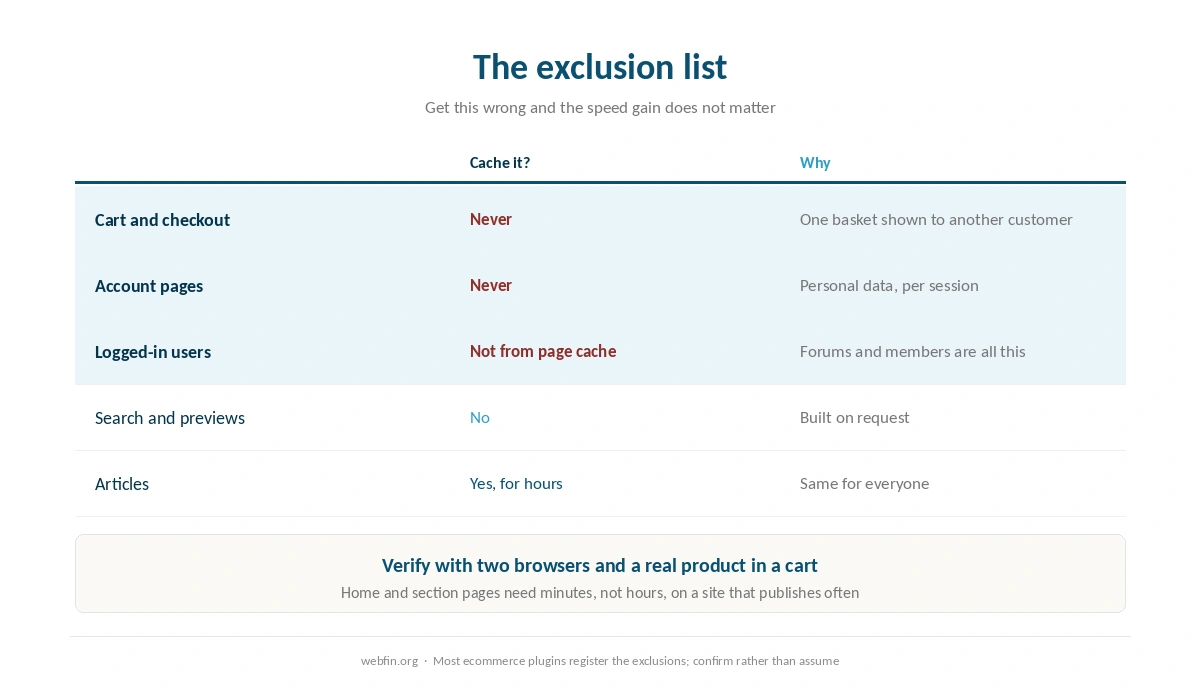
Cart, checkout and account pages. Never cached. Most ecommerce plugins register these automatically, and you should confirm rather than assume.
Logged-in users. Serve them uncached, or use a separate cache per user if the platform supports it. A forum or a membership site is almost entirely this case.
Search results and previews. Built on request, and not worth storing.
Anything with a nonce or a session. Forms, admin screens, API endpoints used by the front end.
⚠️ Test the exclusions with a real purchase, not by reading the settings screen. Add a product to a cart in one browser, then open the site in another, and confirm the second browser sees an empty cart.
Step 3: Browser Headers
Set long expiry times on images, fonts, CSS and JavaScript, and short ones on HTML. Most caching plugins and panels do this with one setting.
The thing to get right is versioning. If a file is cached for a year, changing it means changing its name or adding a version string, otherwise returning visitors keep the old copy. Themes and plugins handle that for their own assets, and a caching plugin handles the rest.
Step 4: Object Caching, When It Helps
Object caching is worth adding when the admin area, a cart or a member dashboard feels slow while cached pages are fine. It removes repeated query work rather than page building.
Managed platforms and servers commonly offer Redis or Memcached, and shared plans commonly do not. On a server you enable it yourself, which our list of hosting for developers covers alongside the other tooling.
Step 5: The Edge, Last
An edge network is the final layer because it multiplies whatever you already have. If page caching is off, the edge has nothing to copy. If the exclusions are wrong, the edge spreads the mistake to every country.
The gain is real when visitors are distant. Hostinger records 223 ms globally on Business against 495 ms on Premium, the same company with and without a network in front.
Caching and Staging Go Together
Every change in this list is worth making on a copy first, because a bad exclusion rule is invisible until a customer sees somebody else’s cart. A staging site costs nothing on hosts that include one, and our guide to setting up a staging site covers making one in ten minutes.
Then repeat the same tests on production after the change, because staging rarely has the same traffic, the same plugins or the same edge configuration. Our list of hosting for ecommerce covers the stores where this matters most.
How to Tell It Is Working
Look for a cache header. Most caches add one, showing a hit or a miss. Two requests to the same article should show a miss then a hit.
Compare cached with uncached. Time an article and then a search page. The gap tells you which layer to work on next, as our guide to testing your site speed properly describes.
Check as a logged-in user. Your own dashboard should never come from the page cache.
Watch for stale pages. Publish a change and confirm it appears. If it does not, the purge rules need work.
The Mistakes That Cost the Most
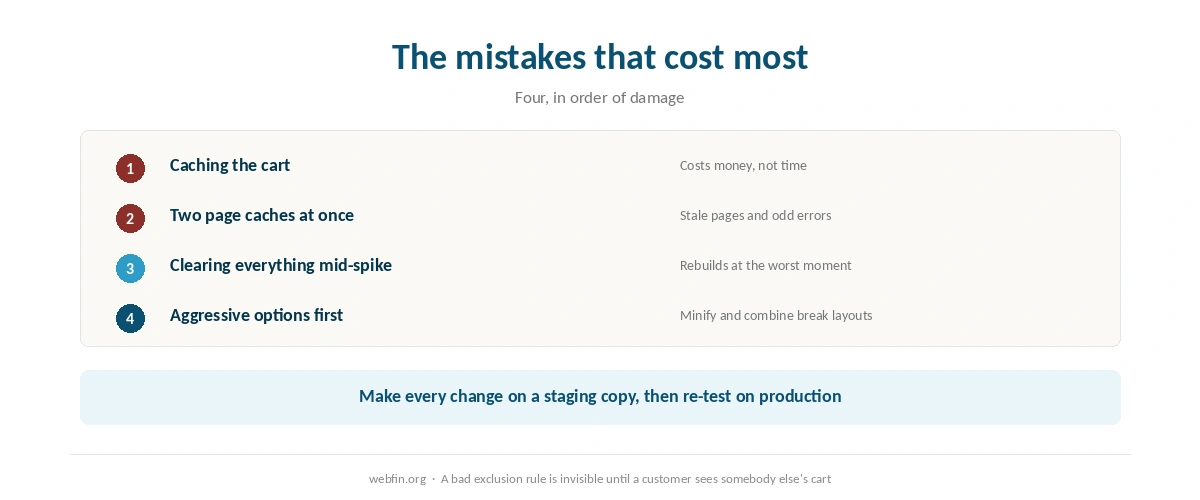
Two page caches. A plugin and a server layer fighting each other, which produces the mysterious errors our guide to fixing a 500 error covers.
Caching the cart. The one that costs money rather than time.
Clearing everything during a spike. The cache rebuilds at the worst moment, as our guide to handling a traffic spike explains.
Aggressive options first. Minification, combining files and lazy loading break layouts. Enable them one at a time, after page caching works.
Which Sites Gain Least
A forum, a membership site and a busy store gain least from page caching, because most of their traffic is logged in. There the useful layers are object caching and the server itself, which our list of hosting for forums and our list of hosting for membership sites both cover.
That is worth knowing before you spend an evening on cache settings. If nothing on your site can be cached, the answer is hardware and queries rather than configuration.
How We Research
This guide describes procedures rather than measurements, and it runs no tests. The delivery figures named here come from Hostingstep’s 2026 benchmarks, each with its window, and the comparison between Hostinger tiers is from the same project.
Caching plugins and their individual settings are outside what we review, because they change between versions. The criteria behind our scores are on our about page, and our guide to checking whether your host is throttling you covers the faults a cache cannot hide.
Caching FAQ
Page caching first, then browser expiry headers, then object caching if your host offers Redis or Memcached, then an edge network. Each layer is worth more once the one before it works.
No. Two page caches produce stale pages and errors that look like bugs in the site. Use the server-level cache if your host has one, or a single plugin if it does not.
Cart, checkout and account pages, logged-in sessions, search results, previews and anything with a nonce or a form token. Test it with a real purchase rather than by reading the settings screen.
Barely, because logged-in pages cannot be served from a page cache. There object caching, the database and the server hardware do the work instead.
Only if visitors are far from the server. Hostinger records 223 ms globally on Business against 495 ms on Premium, which is the same company with and without a network in front of the site.
The Verdict
Enable page caching, get the exclusions right, then add layers in order. Most of the speed arrives with the first step, and most of the trouble arrives from skipping the second.
Test as a logged-in user and with a real cart before you call it done, and add the edge network last, because it copies whatever you have configured, mistakes included. Our guide to reducing TTFB covers what to do when the cache is right and the site is still slow.