
Disclosure: WebFin is reader-supported. If you buy hosting through links on this page, we may earn a commission at no extra cost to you. Commissions vary between providers and our ratings do not — here’s our full disclosure.
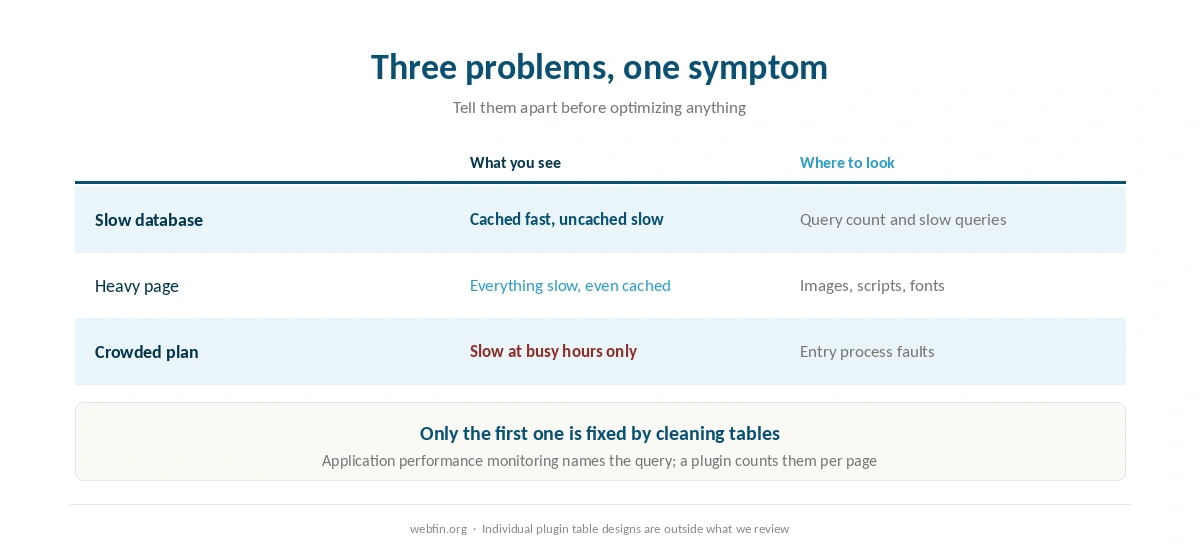
A slow database shows up in a specific way: cached pages are fine, and everything else drags. The dashboard is sluggish, search takes seconds and a cart or a member page feels heavy. The home page looks fast, because a visitor is served a stored copy. Before optimizing anything, confirm that the database is the problem, because the same symptoms come from a heavy page or a crowded server.
How to Fix a Slow Database: The Short Answer
Compare a cached page with an uncached one to confirm the database is involved. Back up. Then clean in this order: autoloaded options, post revisions, expired transients, orphaned metadata, and tables that only grow, such as plugin logs. Optimize the tables, enable object caching if your host offers it, and only then think about indexes or a bigger plan.
Step 1: Confirm It Is the Database
Load a cached article, then load the search results page or a logged-in dashboard. If the first is quick and the second is slow, the work happens after the cache. That points at queries.
Then count the queries. A query monitoring plugin shows how many run per page and which take longest. Hosts with application performance monitoring, such as Kinsta, show the same thing from the server side. Our guide to testing your site speed properly covers measuring both cases without fooling yourself.
⚠️ If both pages are slow, look at the server or the plan first. A crowded shared account produces the same feeling, and our guide to checking whether your host is throttling you shows where the faults appear.
Step 2: Back Up Before You Delete Anything
Every step below removes rows. Take a database copy off the server first, and know how to put it back. Our guide to backing up a WordPress site covers the four parts of a site, and the database is the one that matters here.
Cleanup plugins are convenient and blunt. Read what each option deletes before running it, and run one thing at a time so you can tell what helped.
Step 3: The Usual Suspects, in Order
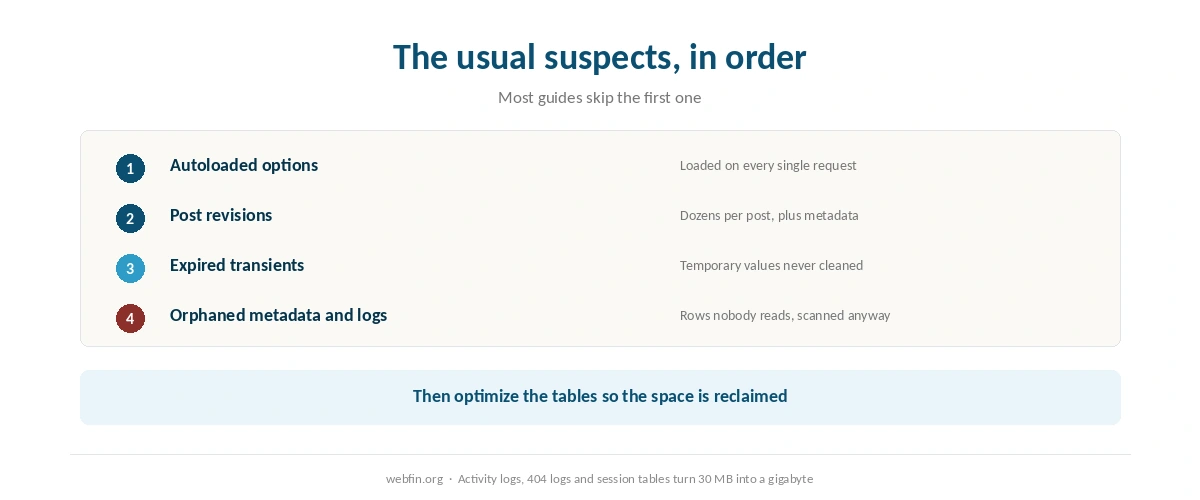
Autoloaded options. WordPress loads part of the options table on every single request. Plugins that store large blobs there make every page slower, including cached ones building for the first time. This is the first place to look and the one most guides skip.
Post revisions. A long-running site keeps dozens of revisions per post, each with its own metadata rows. Limit them in wp-config.php and delete the old ones.
Expired transients. Temporary cached values that never got cleaned up, sometimes tens of thousands of rows.
Orphaned metadata. Rows in post and user metadata left behind by plugins you removed. They are never read and always scanned.
Tables that only grow. Activity logs, 404 logs, analytics tables, abandoned carts, session tables. These are the ones that turn a 30 MB database into a gigabyte.
Step 4: Optimize, Then Cache
After deleting rows, run the optimize operation on the affected tables so the space is actually reclaimed. Most hosting panels expose this in their database tool, and cleanup plugins offer it too.
Then look at object caching. Redis or Memcached keeps query results in memory, which removes repeated work on uncached pages. Managed platforms and servers commonly offer one, and shared plans commonly do not. That is one reason the same site feels different on a VPS. Our guide to reducing TTFB covers where object caching sits among the other layers.
Step 5: Indexes and Queries
If monitoring names one slow query, that is the fix. Add an index on the column it filters, or change the plugin setting that runs the query on every page. Adding indexes by hand is a developer task, and it belongs on a staging copy first.
Meta queries are the usual culprits, because they scan a table that grows with every post and every user. A site whose search filters by several custom fields does exactly that on each request. Our list of hosting for membership sites covers as the uncached case.
Step 6: When It Is the Plan
Database size and table count have ceilings on shared hosting. Bluehost, a Newfold Digital brand, publishes 5 GB for a single database and 5,000 tables or 10 GB across all of them, which is the kind of limit a bloated site meets before it runs out of disk.
A shared database server is also shared: your queries wait behind other accounts’, and no amount of cleaning changes that. If the site is clean and still slow, the next step is a server, as our guide to moving from shared to VPS covers.
| Host and plan | Limit | Where it's stated |
|---|---|---|
| Bluehost shared | 50,000 inodes — soft limit | Hosting Inode Limit article |
| Bluehost shared | 200,000 inodes — AUP threshold | Server Resource Limitations |
| Bluehost shared | 1,000,000 inodes — TOS violation | Hosting Inode Limit article |
| Bluehost shared | 5,000 tables or 10 GB, all databases | Server Resource Limitations |
| Bluehost shared | 5 GB per single database | Server Resource Limitations |
| Bluehost Starter | 100 MB per mailbox | Shared hosting prices page |
| WP Engine Startup | 25,000 monthly visits, then overage handling | Plan pages |
| WP Engine, by tier | 25,000 to 400,000 monthly visits | Plan pages |
| Rocket.net Starter | 25,000 monthly visits, 1 site, 10 GB storage | Plan pages |
| Namecheap EasyWP | 50,000 / 200,000 / 500,000 monthly visits by tier | Plan pages |
| Kinsta Starter | 25,000 monthly visits | Plan pages |
| Scala Hosting VPS | Priced per unit: $3 per core, $1 per gigabyte | Plan pages; adjustable anytime |
| HostGator shared | Weekly backups described as a courtesy, not guaranteed | Hosting terms |
| Liquid Web | Dedicated resources at every tier; no shared plan | Plan pages |
| InterServer Standard | Unlimited storage, bandwidth, email and websites | One plan, no tiers |
| GreenGeeks Lite | One website only | Plan pages |
| IONOS Plus | One email account bundled per plan | Plan pages |
| Hostinger, all plans | Not published | Hostinger support article, 28 Aug 2026 |
| Bluehost Starter | 10 GB NVMe storage | Plan pages, as listed in a 2026 audit |
| InMotion Core | One site, 10 email accounts, SSD storage; NVMe from Launch | TechRadar and a 2026 review |
| SiteGround shared | Shell access by tier — not recorded | Not stated on the plan pages we read, 20 Sep 2026 |
| Bluehost shared | Shell access by tier — not recorded | Not stated on the plan pages we read, 20 Sep 2026 |
| Hostinger, all plans | Shell access by tier — not recorded | Not stated on the plan pages we read, 20 Sep 2026 |
| Cloudways servers | Search service (OpenSearch, Elasticsearch) — not recorded | Not stated on the plan pages we read, 20 Sep 2026 |
Habits That Keep It Fast
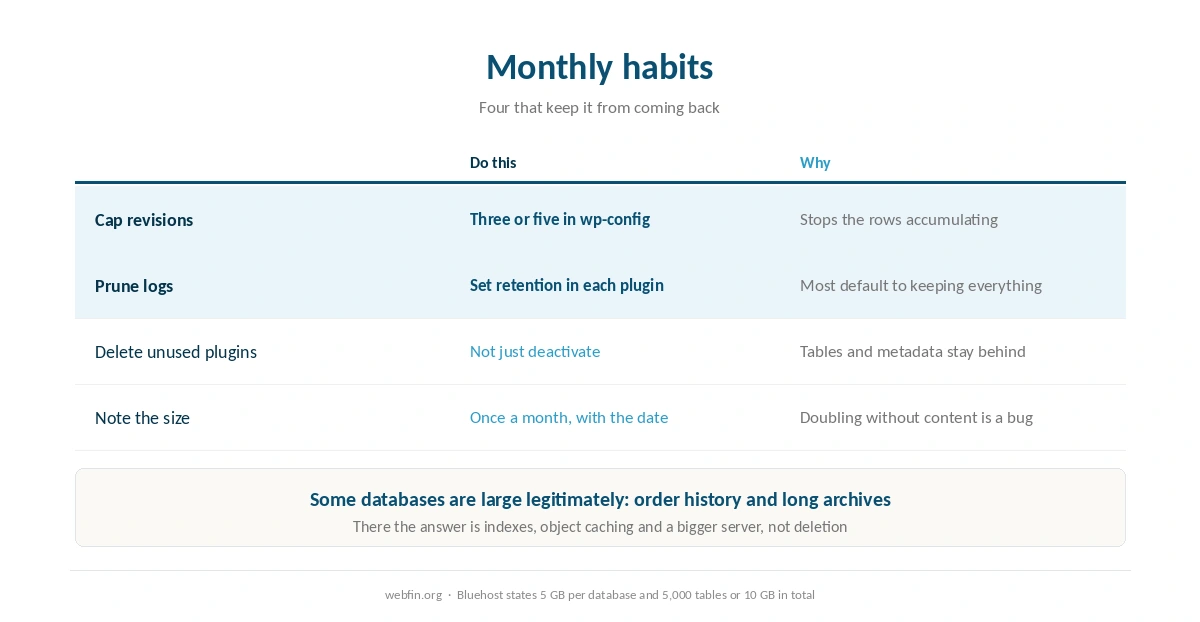
Limit revisions. Set a cap once in wp-config.php: three or five keeps the history useful without the rows.
Prune logs monthly. Any plugin that writes a row per visit needs a retention setting, and most have one turned off by default.
Delete plugins you stopped using. Deactivating leaves the tables and the metadata behind.
Watch the size. Note the database size once a month. A number that doubles without new content is a plugin misbehaving. Our guide to setting up automatic backups makes the safety net automatic while you investigate.
What a Cleanup Actually Changed
Expect the dashboard and search to improve, because those pages were doing the extra work. Expect cached article pages to look the same, because they were never touching the database in the first place.
If nothing improved, the cleanup was not the problem. Put the effort into monitoring instead: one named slow query is worth more than a hundred thousand deleted rows, and that is what application performance monitoring is for.
Two Cases Where Cleaning Will Not Help
A store with real order history. Orders, customers and subscriptions are the business, and they are supposed to grow. The answer is indexes, object caching and a bigger server rather than deletion, which our list of hosting for ecommerce covers.
A long archive. A publication with twenty thousand posts has a large database legitimately. Our list of hosting for news sites covers planning for that rather than fighting it.
One Number Worth Writing Down
Before you clean anything, note two figures: the size of the database and the number of queries on your slowest uncached page. After the cleanup, note them again.
Without those, a cleanup is a feeling rather than a result, and the next plugin that bloats the options table will go unnoticed for months. Our guide to setting up a staging site covers doing the risky part on a copy first.
How We Research
This guide describes procedures rather than measurements, and it runs no tests. The database and table limits named here come from the providers’ own documentation, read on 20 September 2026, and sit in our tables.
Individual plugins and their table designs are outside what we review, because the behavior depends on the plugin rather than the host. The criteria behind our scores are on our about page, and our guide to fixing a 500 error covers the case where the site fails outright rather than dragging.
Slow Database FAQ
Compare a cached page with an uncached one. If the article loads quickly and the search results or dashboard drag, the work happens after the cache. That points at queries.
Autoloaded options holding large values, post revisions, expired transients, orphaned metadata from removed plugins, and tables that only grow such as activity or 404 logs.
It reclaims space after you delete rows, which is worth doing as the last step of a cleanup. On its own, without deleting anything, it changes very little.
It removes repeated query work on uncached pages, which helps dashboards, carts and member areas. Managed platforms and servers commonly offer Redis or Memcached, and shared plans commonly do not.
It depends on the plan rather than on WordPress. Bluehost publishes 5 GB for a single database and 5,000 tables or 10 GB across all of them, and a bloated site can meet those before it runs out of disk space.
The Verdict
Confirm the diagnosis first, because a heavy page and a crowded server feel identical from the outside. Then work in order: autoloaded options, revisions, transients, orphaned metadata, growing tables. Back up before each step and change one thing at a time.
If the database is clean and the site is still slow, the problem is capacity rather than housekeeping. That means object caching, an index on the query monitoring named, or a server of your own. Our list of hosting for developers records which hosts put database access and object caching within reach.