
Disclosure: WebFin is reader-supported. If you buy hosting through links on this page, we may earn a commission at no extra cost to you. Commissions vary between providers and our ratings do not — here’s our full disclosure.
WordPress Multisite runs many sites from one installation, with one set of plugins, one theme library and one database. Setting it up takes about twenty minutes and two edits to configuration files. Deciding whether to set it up is the harder part. A network shares everything: one hack reaches every site, one plugin conflict breaks every site, and moving a single site out later is real work. This guide covers both decisions, and the hosting limits a network meets first.
How to Set Up WordPress Multisite: The Short Answer
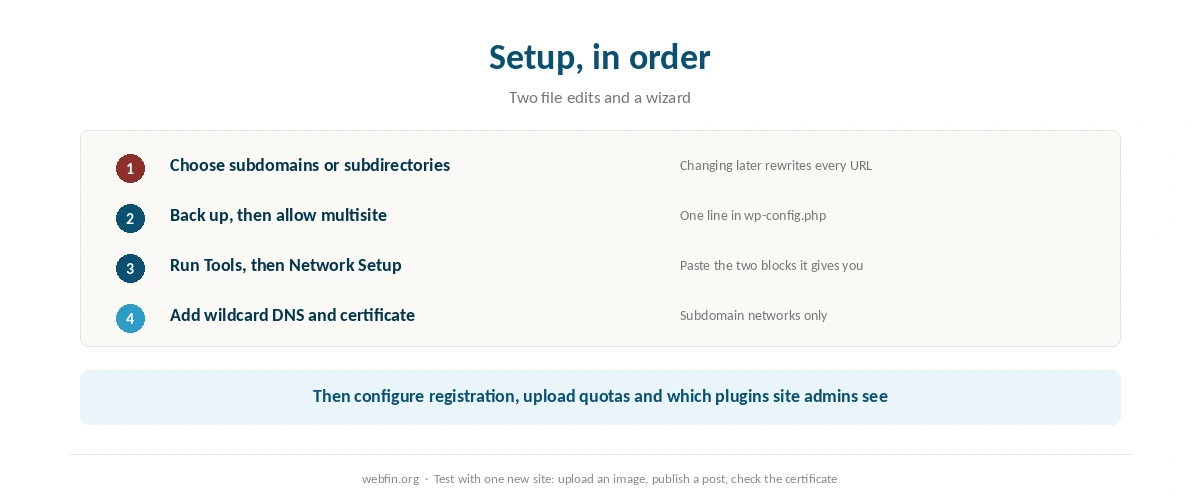
Back up first. Add one line to wp-config.php, run Tools then Network Setup, paste the two blocks WordPress gives you into wp-config.php and .htaccess, and log back in. For subdomain networks you also need a wildcard subdomain and a wildcard certificate, which not every shared plan allows. Choose subdomains or subdirectories before you start, because changing later is painful.
When a Network Is the Right Answer
Many similar sites, one team. A chain’s locations, a university’s departments, a publisher’s titles. Central updates are the whole point.
One plugin and theme set. If each site needs its own stack, a network fights you every week.
Shared users. One login across every site is useful for staff and pointless for unrelated clients.
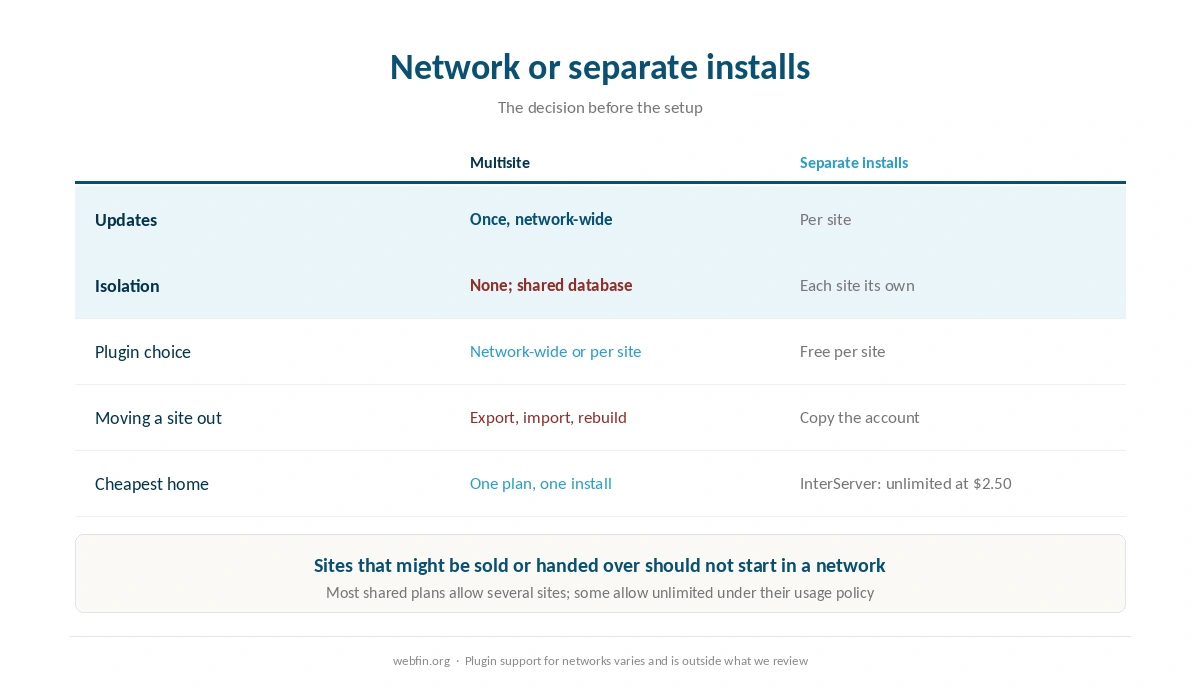
Nothing to sell or hand over. Sites that might leave should not start in a network. Our list of hosting for agencies covers the client case instead.
The Hosting Limits a Network Meets First
Database tables. Core creates roughly ten tables per site. A plan capped at 5,000 tables therefore holds about 500 sites before plugins, and closer to 380 once a couple of plugins add their own. Bluehost, a Newfold Digital brand, publishes both figures: 5,000 tables or 10 GB across all databases, and 5 GB for a single database.
Files. Each site gets its own uploads folder, and every image becomes several resized files. Bluehost publishes 50,000 inodes as a soft limit, which our piece on what unlimited hosting means explains.
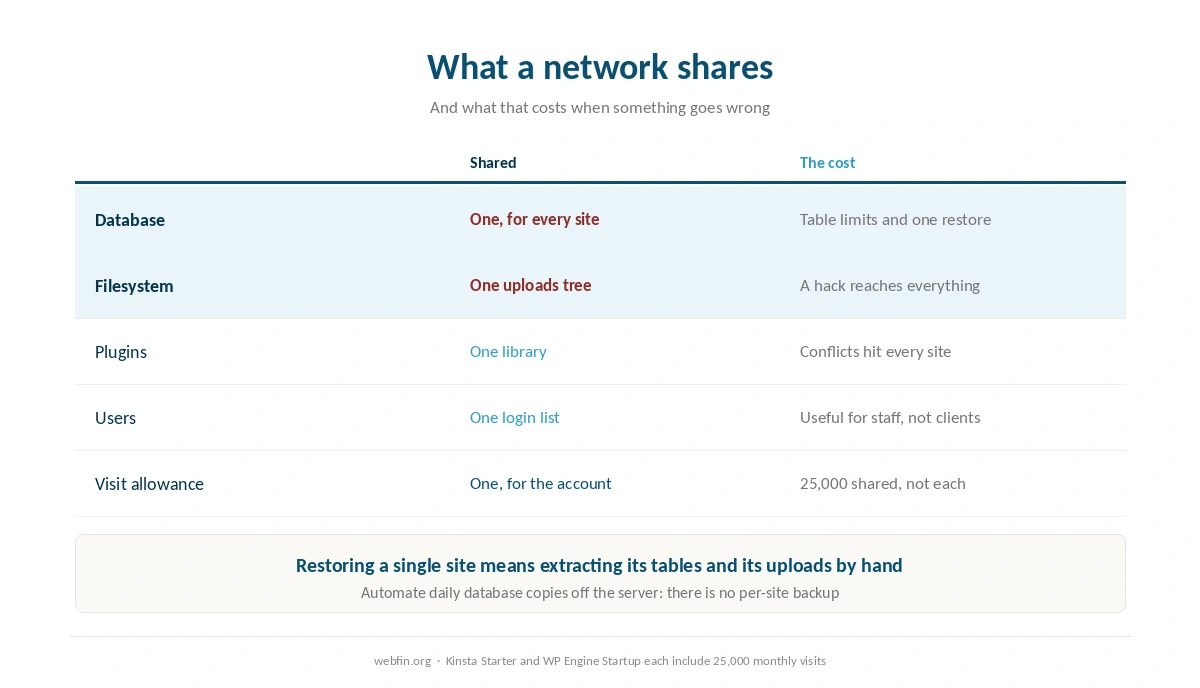
Visits. Managed platforms that price by visits count the whole network, and entry tiers at Kinsta and WP Engine include 25,000 monthly visits between them rather than each.
Wildcards. A subdomain network needs a wildcard DNS record and a wildcard certificate. Some shared plans refuse one or both, and that is the question to ask support before you start.
| Host and plan | Limit | Where it's stated |
|---|---|---|
| Bluehost shared | 50,000 inodes — soft limit | Hosting Inode Limit article |
| Bluehost shared | 200,000 inodes — AUP threshold | Server Resource Limitations |
| Bluehost shared | 1,000,000 inodes — TOS violation | Hosting Inode Limit article |
| Bluehost shared | 5,000 tables or 10 GB, all databases | Server Resource Limitations |
| Bluehost shared | 5 GB per single database | Server Resource Limitations |
| Bluehost Starter | 100 MB per mailbox | Shared hosting prices page |
| WP Engine Startup | 25,000 monthly visits, then overage handling | Plan pages |
| WP Engine, by tier | 25,000 to 400,000 monthly visits | Plan pages |
| Rocket.net Starter | 25,000 monthly visits, 1 site, 10 GB storage | Plan pages |
| Namecheap EasyWP | 50,000 / 200,000 / 500,000 monthly visits by tier | Plan pages |
| Kinsta Starter | 25,000 monthly visits | Plan pages |
| Scala Hosting VPS | Priced per unit: $3 per core, $1 per gigabyte | Plan pages; adjustable anytime |
| HostGator shared | Weekly backups described as a courtesy, not guaranteed | Hosting terms |
| Liquid Web | Dedicated resources at every tier; no shared plan | Plan pages |
| InterServer Standard | Unlimited storage, bandwidth, email and websites | One plan, no tiers |
| GreenGeeks Lite | One website only | Plan pages |
| IONOS Plus | One email account bundled per plan | Plan pages |
| Hostinger, all plans | Not published | Hostinger support article, 28 Aug 2026 |
| Bluehost Starter | 10 GB NVMe storage | Plan pages, as listed in a 2026 audit |
| InMotion Core | One site, 10 email accounts, SSD storage; NVMe from Launch | TechRadar and a 2026 review |
| SiteGround shared | Shell access by tier — not recorded | Not stated on the plan pages we read, 20 Sep 2026 |
| Bluehost shared | Shell access by tier — not recorded | Not stated on the plan pages we read, 20 Sep 2026 |
| Hostinger, all plans | Shell access by tier — not recorded | Not stated on the plan pages we read, 20 Sep 2026 |
| Cloudways servers | Search service (OpenSearch, Elasticsearch) — not recorded | Not stated on the plan pages we read, 20 Sep 2026 |
Step 1: Choose Subdomains or Subdirectories
Subdirectories give addresses like example.com/paris. They need no DNS work and no wildcard certificate, and they suit one organization with sections.
Subdomains give paris.example.com. They look like separate sites, and they need a wildcard DNS record plus a wildcard certificate. Custom domains can be mapped onto either shape.
⚠️ Decide now. Changing the shape after sites exist means rewriting every URL stored in the database, across every site, which is why it belongs at the start.
Step 2: Back Up, Then Enable the Network
Take a full backup off the server first, including the database. A network is a structural change, and our guide to backing up a WordPress site covers the four parts to include.
Then add one line to wp-config.php, above the line that says that is all, stop editing: define( 'WP_ALLOW_MULTISITE', true );. Deactivate your plugins before the next step, because WordPress asks you to.
Step 3: Run Network Setup
In the dashboard go to Tools, then Network Setup. Choose subdomains or subdirectories, name the network, confirm the admin email, and install.
WordPress then shows two blocks of code. One goes into wp-config.php, the other into .htaccess, replacing the existing WordPress rules. Copy them exactly; they differ between the two network shapes.
Log out and back in. The admin bar now has My Sites and a Network Admin area, which is where sites, users, themes and plugins are managed from.
Step 4: Set Up DNS and Certificates
For a subdomain network, add a wildcard DNS record so any subdomain resolves, then install a wildcard certificate. Free certificate authorities issue wildcards, but not every host automates them, so this is the step where shared plans differ.
For a subdirectory network, neither is needed. For mapped custom domains, each domain needs its own record and certificate, and our guide to pointing a domain to a new host covers the records.
Step 5: Configure the Network
Registration. Decide whether anyone can create sites, or only you. For most networks the answer is only you.
Upload quotas. Network settings let you cap storage per site, which is how you keep one site from filling the account.
Plugins. Network-activated plugins run everywhere and cannot be turned off per site. Enable the plugins menu for site admins only if you want them choosing.
Themes. Themes must be network-enabled before a site can use them.
Step 6: Test With One Site
Create a single site in Network Admin, visit it, upload an image, and publish a post. Then activate a plugin network-wide and check that the new site still works.
Test the certificate on the new address as well, because a wildcard that covers one level does not cover deeper ones. And run the same speed check you run on the main site, because every site shares one server. Our guide to testing your site speed properly covers the method.
What a Network Costs You Later
One hack reaches everything. Sites share a database and a filesystem, so recovery is network-wide. Our guide to recovering a hacked website assumes a single site; a network multiplies the work.
Backups are all or nothing. Restoring one site from a network backup means extracting its tables and its uploads folder by hand.
Moving a site out is a project. Export and import moves the content, not the settings or the plugin data, and the site loses its shared users.
Plugin compatibility narrows. Some plugins do not support networks at all, and others need a network license.
The Alternative Most People Want
Separate installations on one hosting account. Most shared plans allow several sites, and some allow unlimited under an acceptable use policy: InterServer holds unlimited sites at $2.50 a month with the price locked. Each site then has its own database, its own plugins and its own blast radius.
The trade is maintenance: updates happen per site rather than once. A management tool handles that, and our list of hosting for multiple sites covers what several sites share on one account either way.
Keeping a Network Backed Up
A network backup is one database and one uploads tree, so automation matters more than usual. There is no per-site copy to fall back on unless you make one. Run daily database copies off the server, as our guide to setting up automatic backups describes.
Then test a restore on a staging copy of the whole network before you need it. Restoring a network into a staging environment is the rehearsal, and our guide to setting up a staging site covers making one.
When the Network Outgrows Shared Hosting
Two signals matter. One is resource faults during busy hours, because every site in the network competes for the same account limits. The other is the table count creeping toward the plan ceiling.
Either argues for a server sized to the work rather than a bigger shared tier, and our guide to checking whether your host is throttling you covers confirming the first signal.
How We Research
This guide describes procedures rather than measurements, and it runs no tests. The table limits named here come from the providers’ own documentation, read on 20 September 2026, and sit in our tables. The per-site table estimate is arithmetic on WordPress core’s own table structure rather than a measurement.
Plugin behavior inside networks varies by plugin and is outside what we review. The criteria behind our scores are on our about page, and our list of hosting for developers covers the tooling a network benefits from.
WordPress Multisite FAQ
For a subdirectory network, no: any plan that runs WordPress will do. For subdomains you need a wildcard DNS record and a wildcard certificate, and not every shared plan allows both. Ask support before you start.
Table count reaches its ceiling before storage does. Core creates roughly ten tables per site. A 5,000-table cap therefore holds about 500 sites before plugins. Add a couple of plugins with tables of their own and it is closer to 380.
Not easily. It means rewriting every URL stored in the database across every site, which is why the shape is the first decision rather than a later one.
Usually not. Clients need isolation, their own plugin choices and the ability to leave with their site. A network gives none of those, and one compromised site affects all of them.
On platforms that price by visits, yes. Kinsta Starter and WP Engine Startup each include 25,000 monthly visits for the account rather than per site, so a network spends one allowance between all of its sites.
The Verdict
Multisite is twenty minutes of setup and a long commitment. It earns its place when one team runs many similar sites and wants to update them once, and it punishes anyone who wanted isolation instead.
Before you enable it, ask support two questions: whether the plan allows a wildcard subdomain and certificate, and what its database table and inode limits are. Those answers decide how far the network can grow. Our guide to moving from shared to VPS covers the step after that.